This section describes Powerlynx tools designed to simplify your everyday use of the platform.
Mass create vouchers tool
This tool is designed to create vouchers for multiple customers in bulk. For example, if you have 200 customers and want to give them each 1-day internet access without making the data plan publicly available on the splash page, you can use this tool to:
- Select the customers
- Choose the data plan
- Generate vouchers for them
When the customers connect, they activate their individual voucher and gain internet access.
How to use:
First, you need to create a target group of customers for whom the vouchers will be generated. Go to Marketing → Target Groups and create a new group.
Navigate to
Config/Tools/Mass create voucherstool:
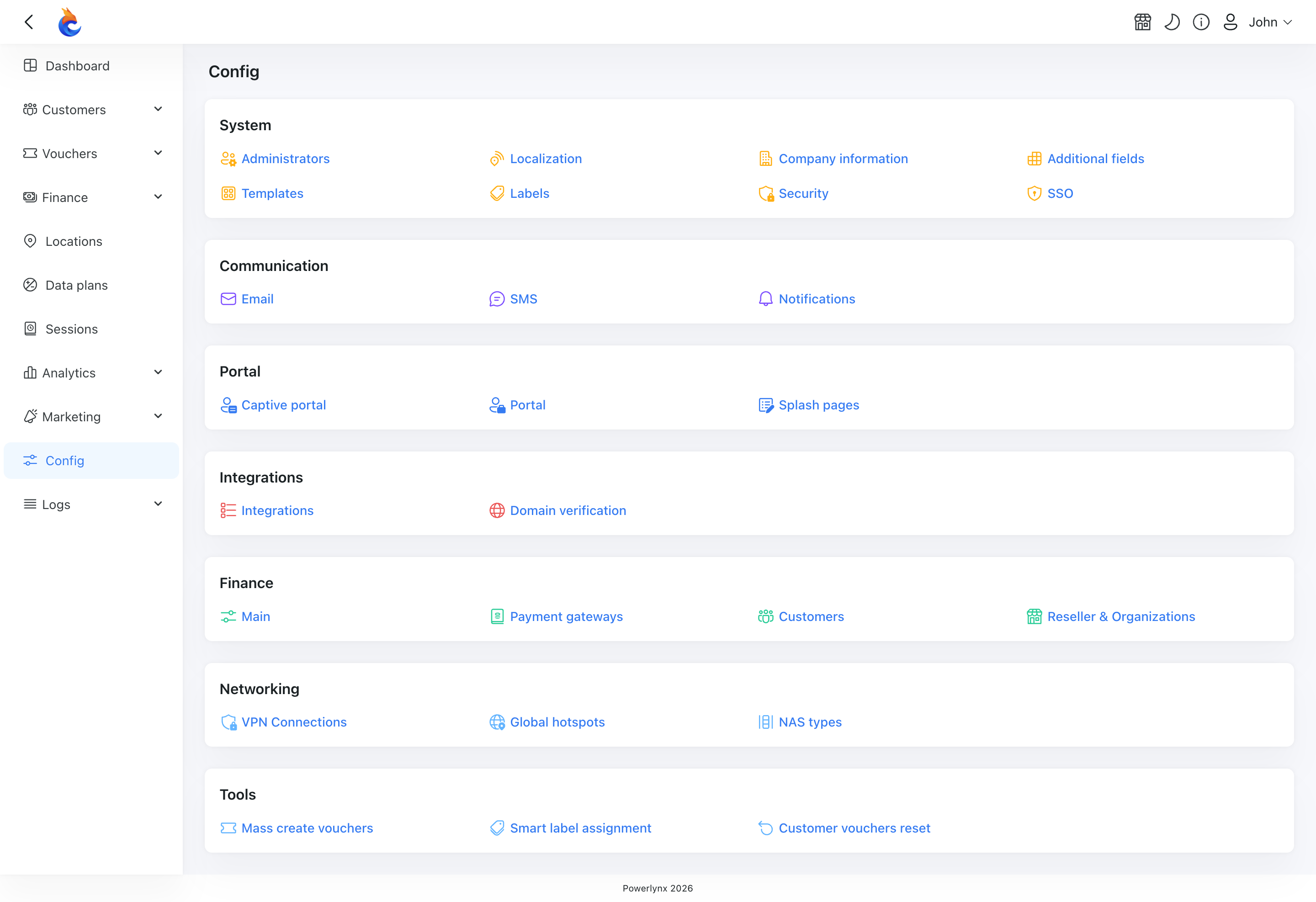
and click the Add button.
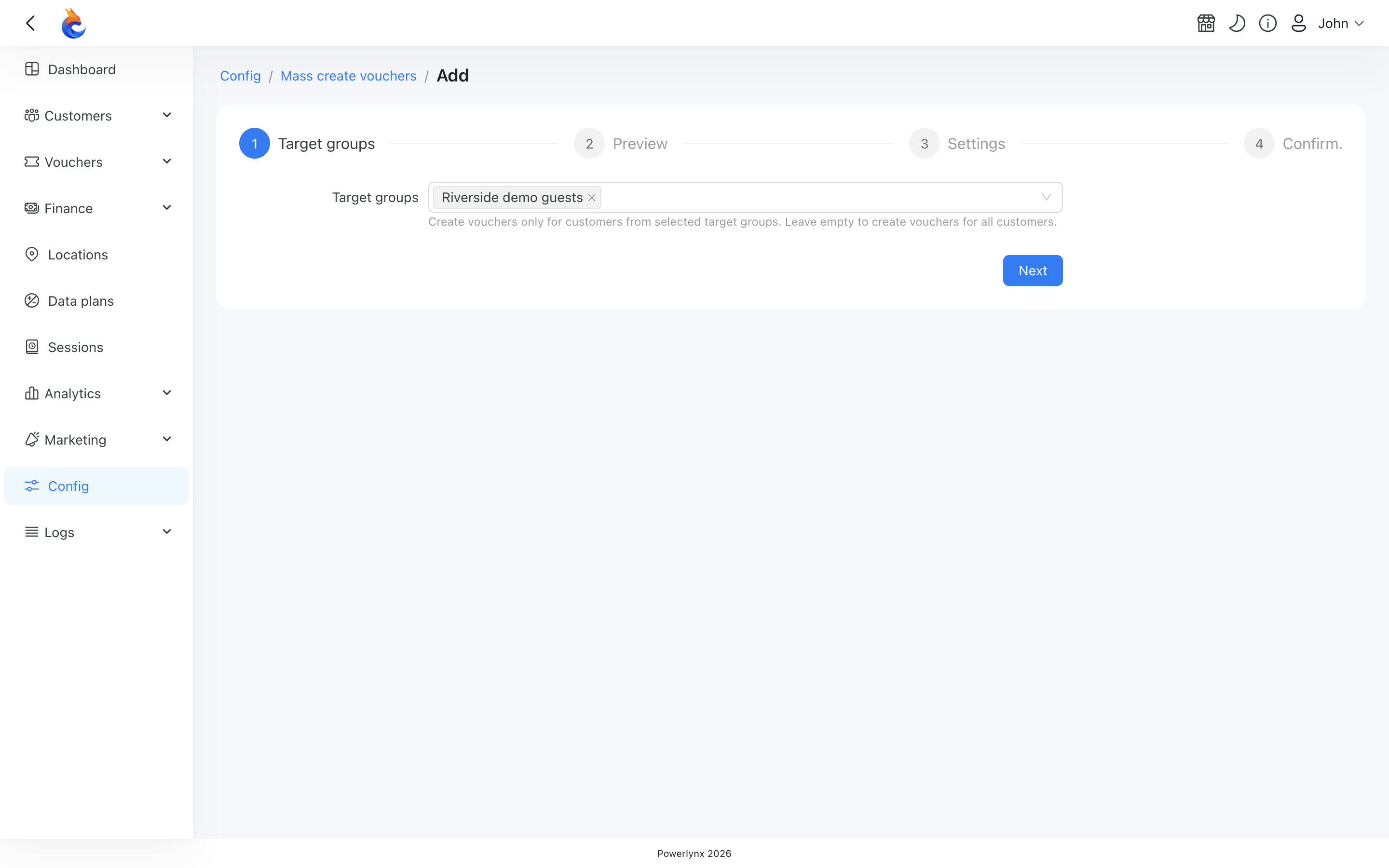
- In Step 1, select your target group containing the filtered customers:
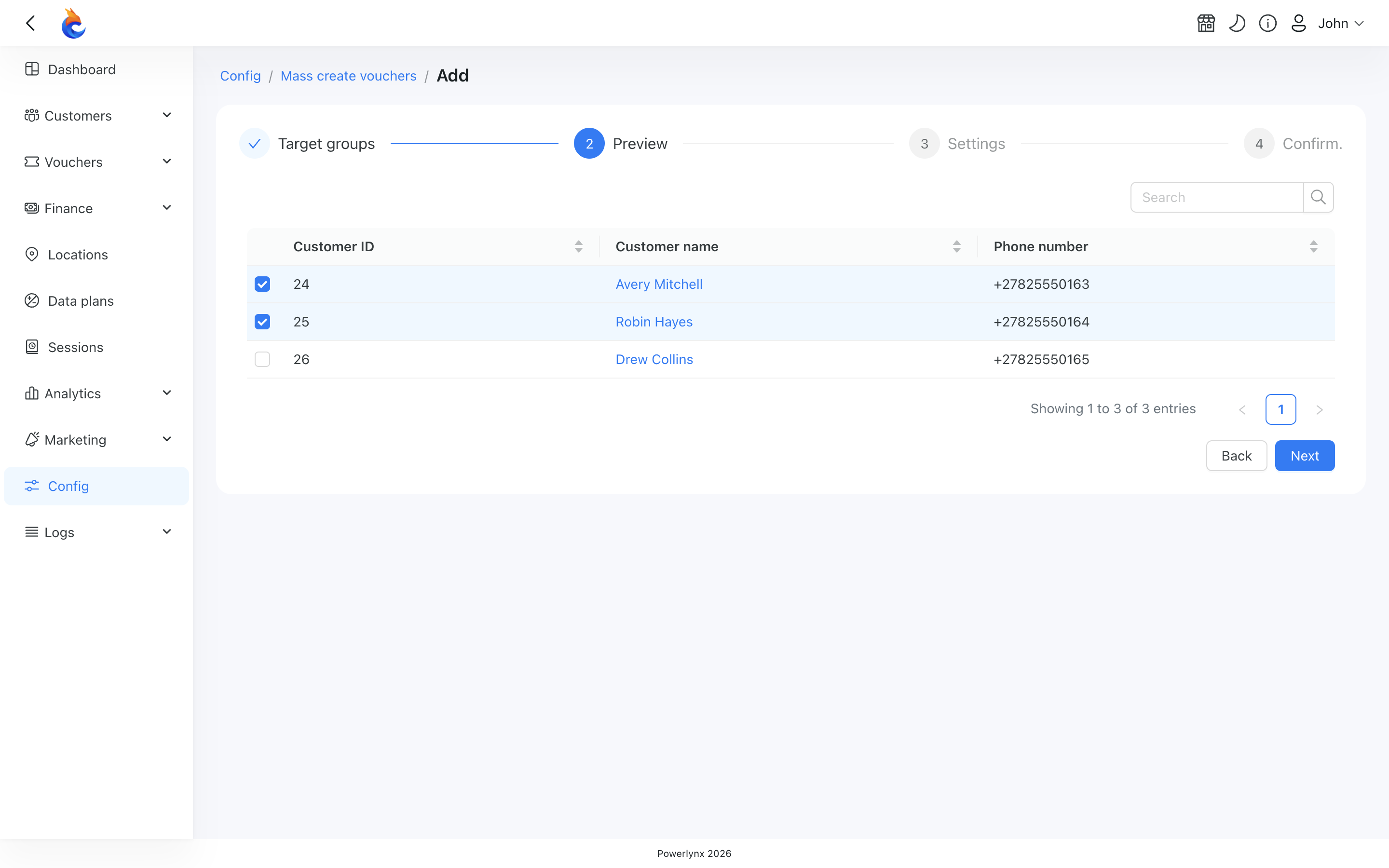
- In Step 2, review the selected customers and deselect any if necessary:
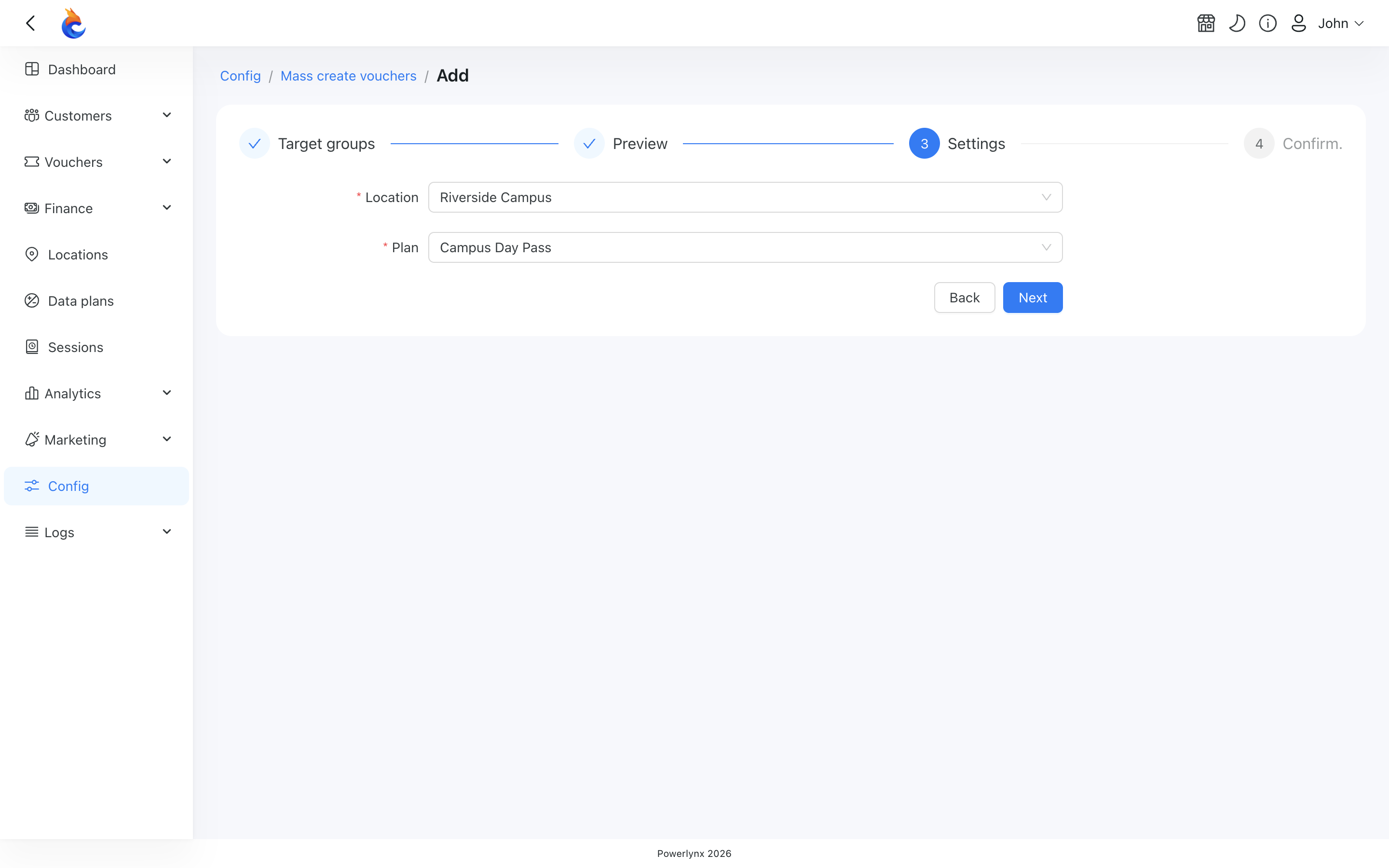
- In Step 3, select the location and desired data plan:
INFO
Please note that these vouchers will be linked to the selected location. If a customer connects from a different location, they won’t be able to use the voucher.
- In Step 4, confirm this action and the process will start:
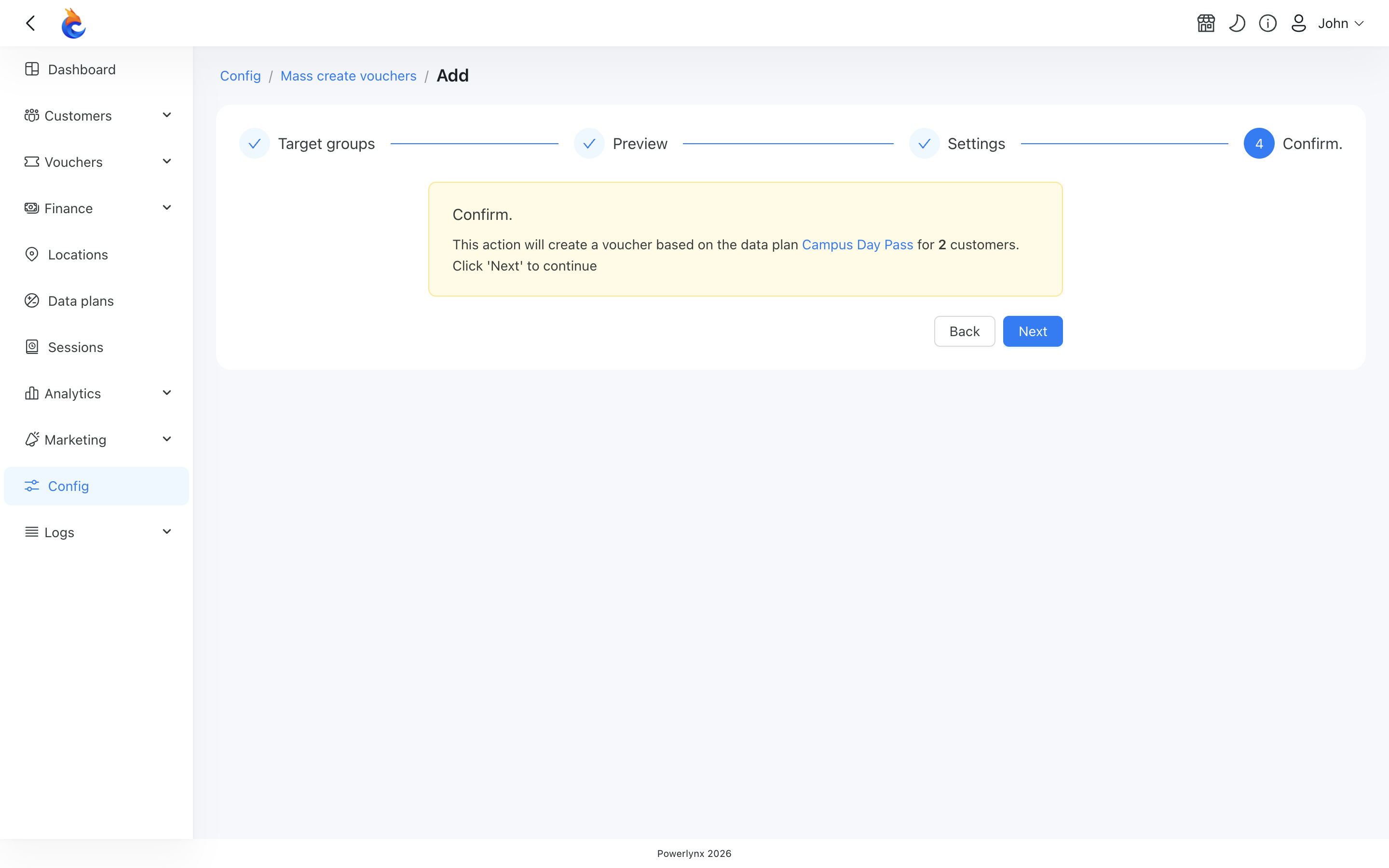
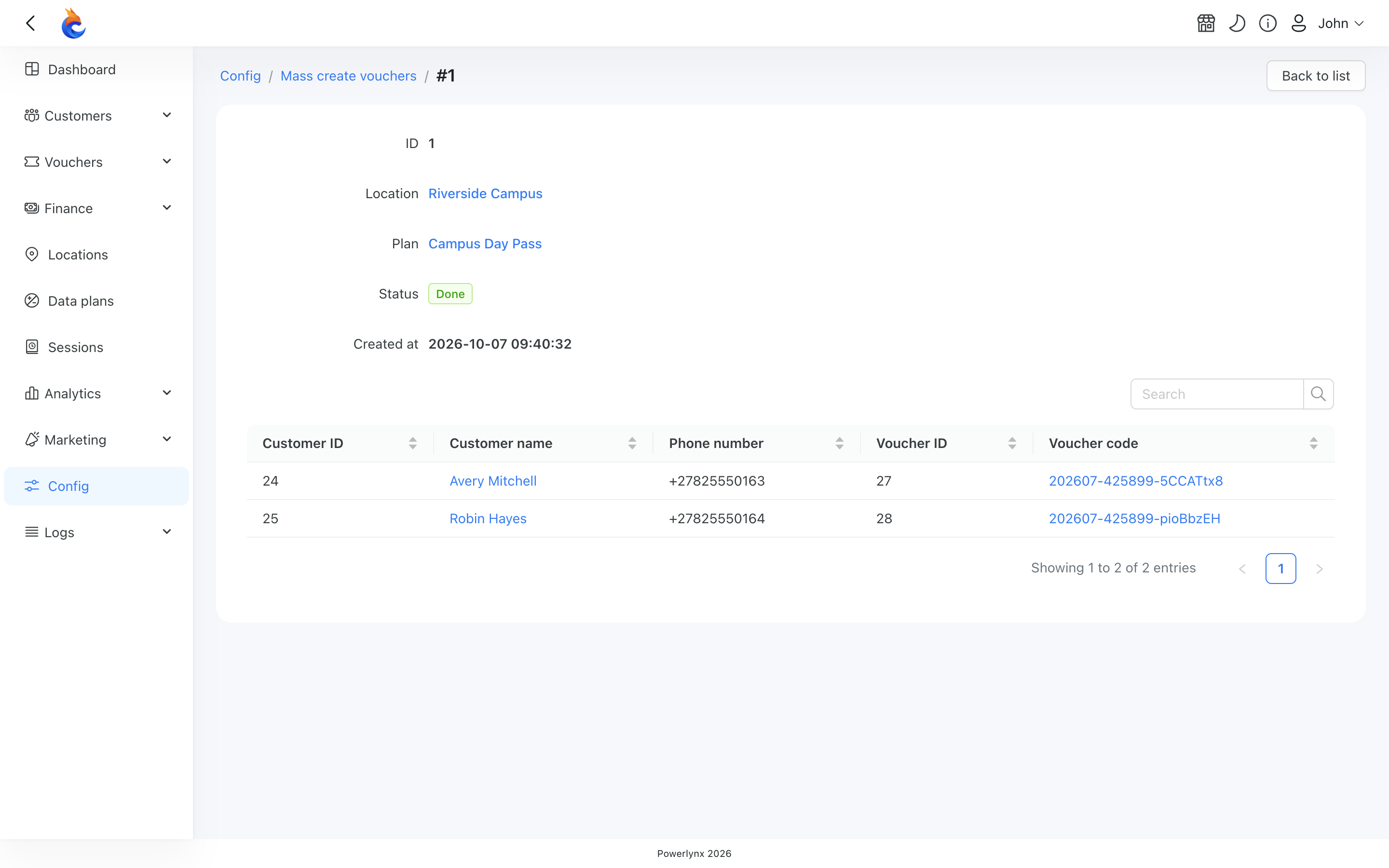
- Ensure that the voucher has been created successfully. Navigate to the customer for whom you generated the voucher and open their Vouchers tab. Filter vouchers by the status and you should see the voucher listed with a status of New:
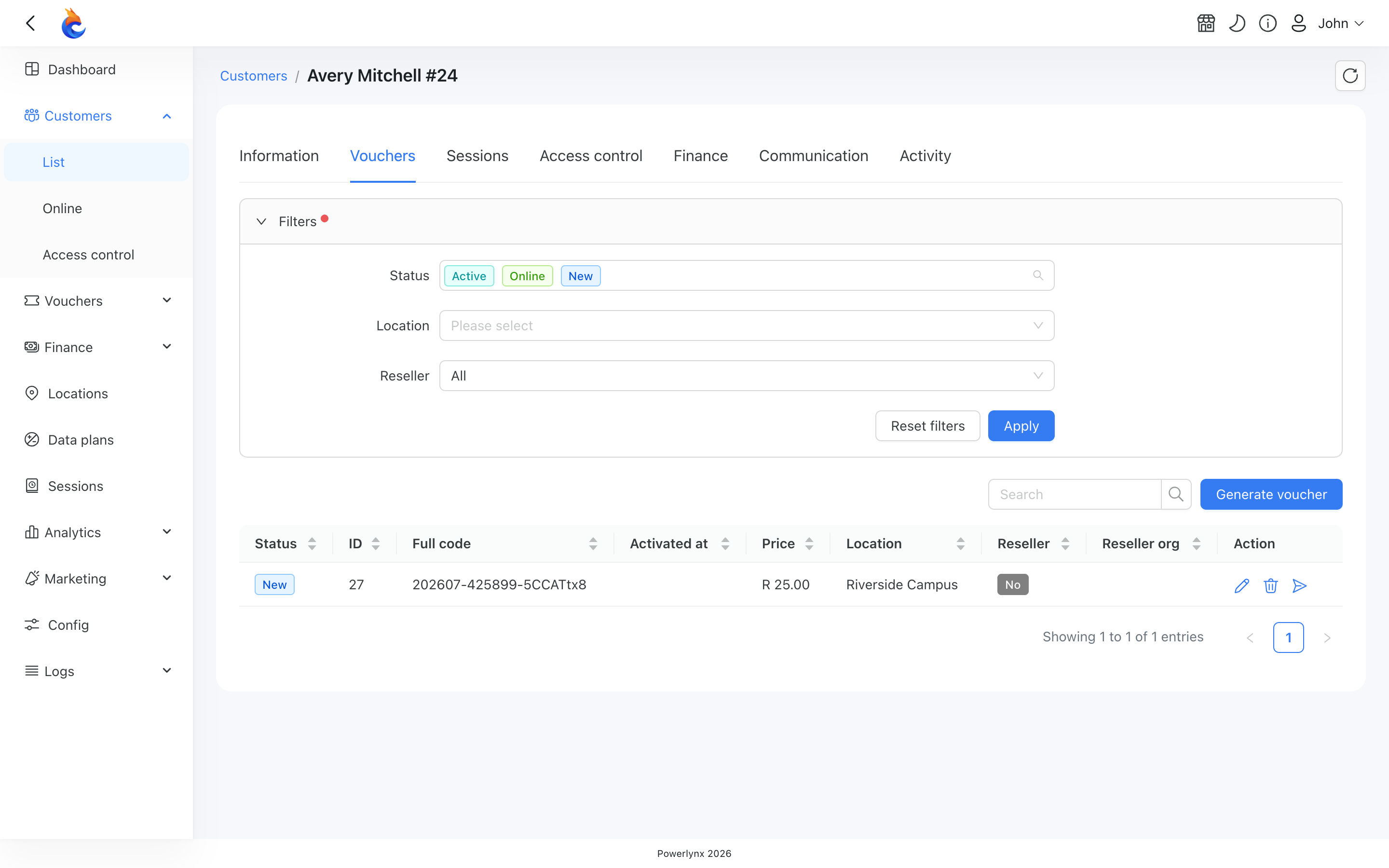
When the customer connects, the voucher will be automatically activated.
Customer vouchers reset
This tool cuts a whole group of customers off the network at once. Use it when a season ends, when you switch guest login off, or when a batch of devices keeps reconnecting automatically and should stop.
It can do two things, and you choose either or both:
- Disable vouchers — moves the customers'
NewandActivevouchers toDisabled. Vouchers that are already used, expired or disabled are left alone. - Delete MAC addresses — permanently removes every MAC address registered to those customers, so their devices stop reconnecting on their own and have to log in again.
DANGER
A reset cannot be undone. Deleted MAC addresses are gone and disabled vouchers must be re-issued by hand. The tool is available to super administrators only, and it asks you to tick an acknowledgement before it starts.
How to use:
First, create a target group that matches the customers you want to reset. Go to Marketing → Target Groups and create a new group. Any filter you can express there works here — for example, to clear guest users, build a group that matches an empty phone number, or the label your Smart label assignment rule puts on them.
Navigate to
Config/Tools/Customer vouchers reset. The list shows every past run with the actions it applied and what it changed. Click Add to start a new one.
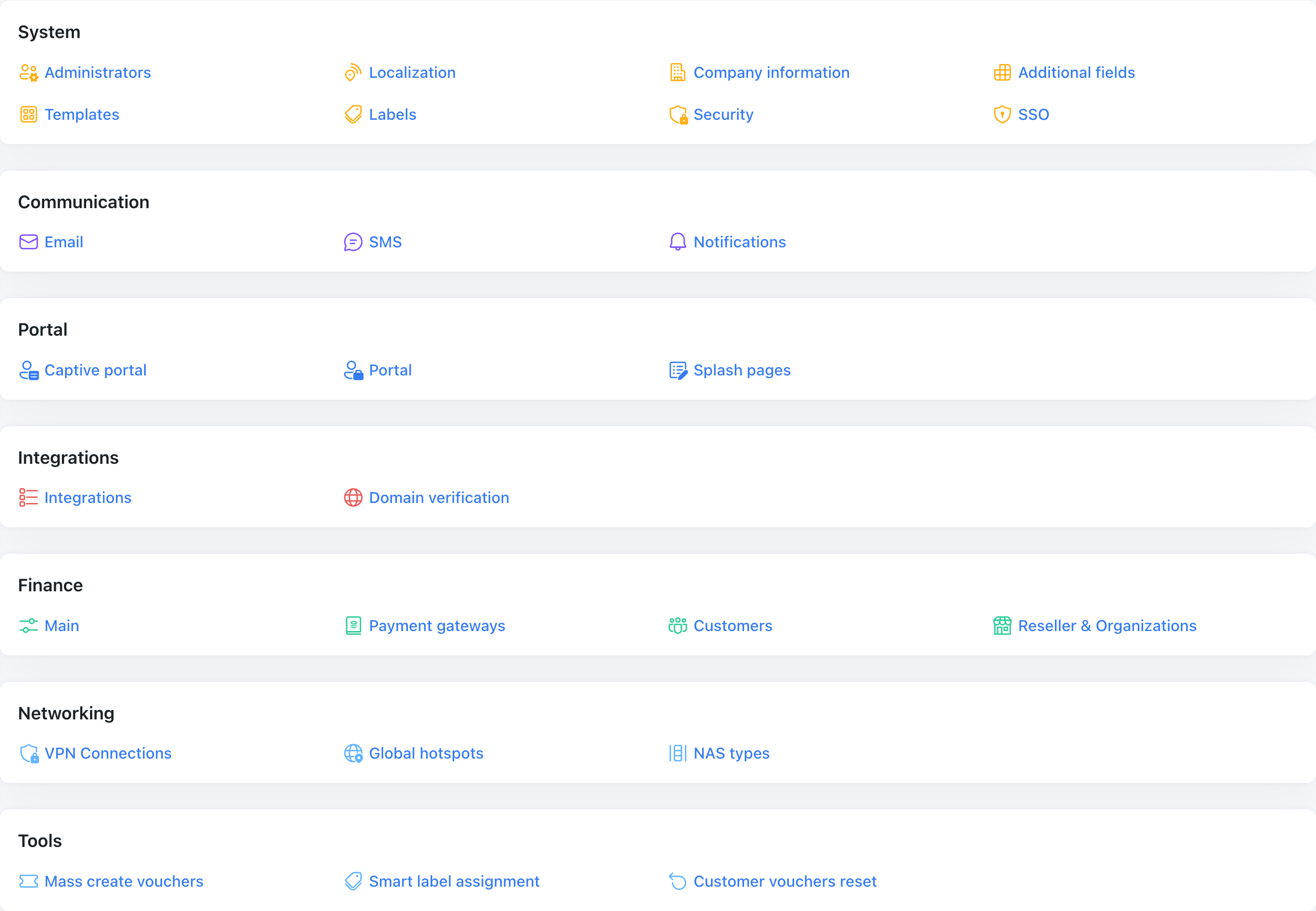
In Step 1, choose what the run should do. At least one of the two actions must be on — with both off the run would change nothing, and Next stays disabled. You can also add a Note (up to 1000 characters) explaining why the reset is being run; it is kept with the record, which matters because someone will ask later.
In Step 2, select one or more target groups. Unlike the other tools, leaving this empty is not allowed — for a destructive tool "no group" would mean "every customer you have".
In Step 3, review the matched customers. Everyone is selected by default; untick anyone who must be spared and they stay untouched.
In Step 4, confirm. This step spells out exactly what is about to happen, including the real number of affected customers. Tick the acknowledgement to enable Next.
The run then happens in the background. Its page refreshes on its own while it works and then settles on Done or Failed, showing how many customers were processed, how many vouchers were disabled and how many MAC addresses were deleted.
Smart label assignment
This tool helps you automatically assign labels to newly created customers based on configured filters.
Example: Assign label X to all new customers who are older than 25, registered from Location #1, and have a non-empty email address.
Once labels are assigned to customers, you can easily run per-label reports without manually labeling each customer. Simply select a report, choose a customer label, and you’ll receive a report covering all customers with that label.
How to use:
Make sure you have created at least one customer label
Navigate to
Config/Tools/Smart label assignmenttoolCreate a new record, give it a name, select the label to assign, and set the filters:
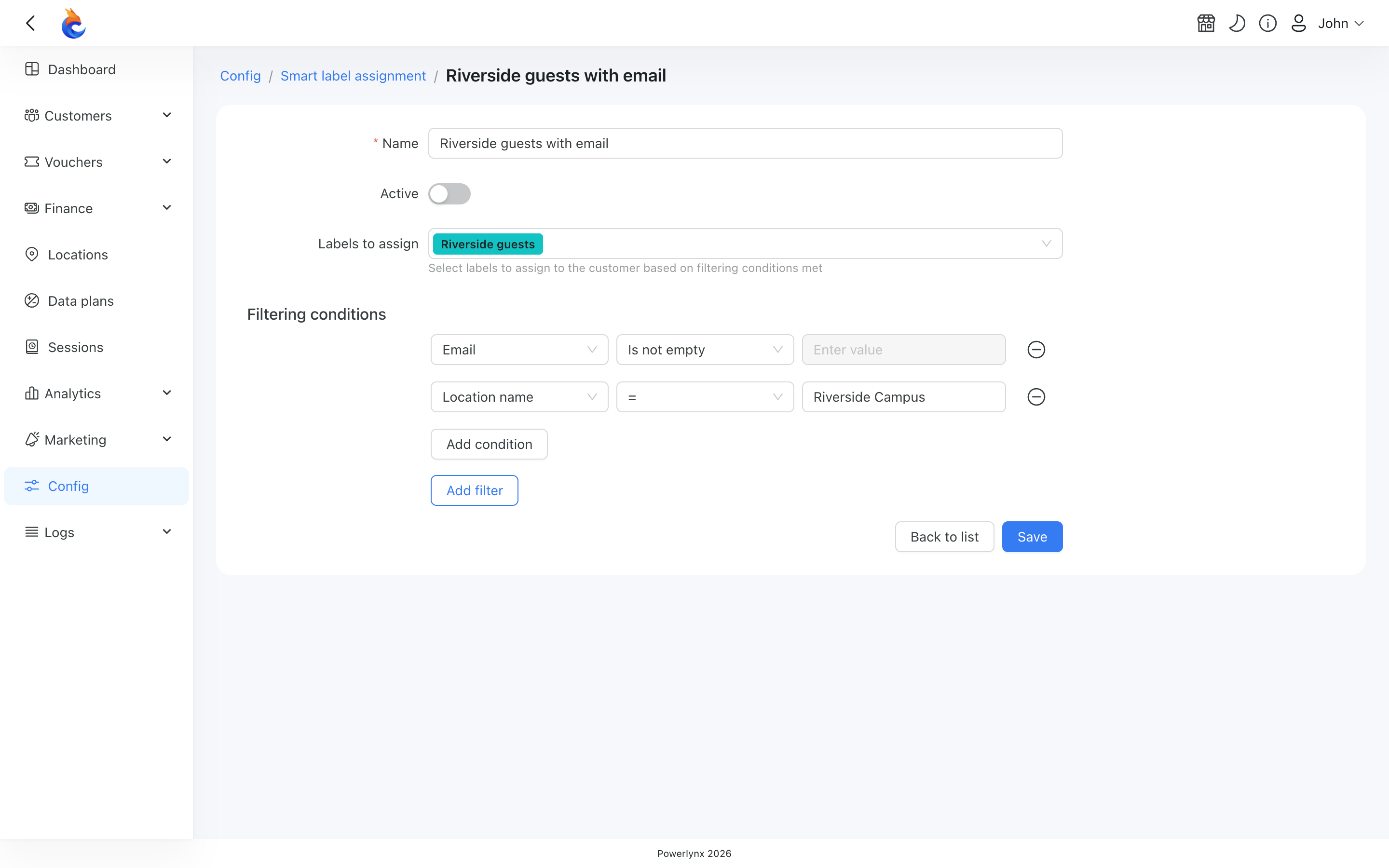
- Monitor newly created customers. The label you configured will be automatically assigned to all new customers that match the specified parameters.