1Voucher 🇿🇦
1Voucher 1Voucher is a prepaid digital payment voucher that lets you turn your cash into a 16-digit PIN you can use to pay online. Your customers can use 1Voucher to pay for internet access through Powerlynx.
To set up 1Voucher integration in Powerlynx, ensure you've selected country South Africa under Config/System/Localization.
Configuration
Before integrating 1Voucher with Powerlynx, you need to have a 1Voucher merchant account. 1Voucher is supplied by Flash — if you don’t have an account, please contact Flash to request it.
Which Flash platform?
Flash runs two platforms, and Powerlynx supports both:
- Keycloak + Glu Control — the current platform. All new merchants are onboarded to it, and Flash issues you a client ID and client secret together with an API key.
- FlashSwitch (legacy) — the older platform. Existing merchants can keep using it, but Flash will switch it off. When that happens, 1Voucher payments stop until you change your configuration to Keycloak + Glu Control with the new credentials from Flash.
If you are not sure which platform your credentials belong to, ask Flash before you start.
Credentials
To integrate 1Voucher with Powerlynx, you need the following credentials:
| Attribute | Required | Data Type | Description |
|---|---|---|---|
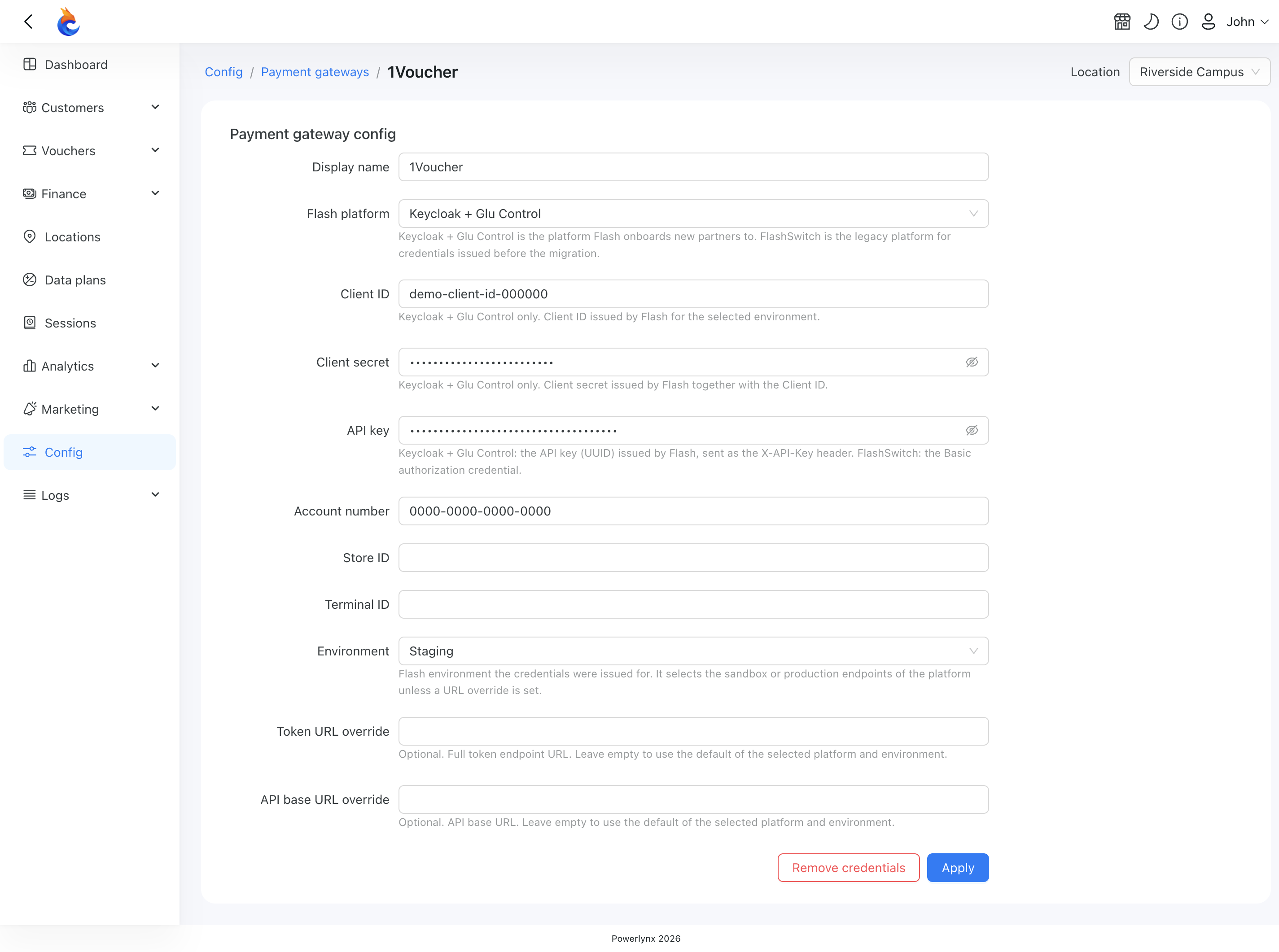
| Flash platform | YES | Select | Keycloak + Glu Control or FlashSwitch (legacy) — the platform your credentials were issued for |
| Client ID | Keycloak + Glu Control only | String | The client ID Flash issued for the selected environment. Not used on FlashSwitch |
| Client secret | Keycloak + Glu Control only | String | The client secret Flash issued together with the client ID. Not used on FlashSwitch |
| API Key | YES | String | The API key Flash issued for your account. On Keycloak + Glu Control it is a separate key issued alongside the client ID and secret |
| Account number | YES | String | The account number of the Merchant, exactly as issued (with dashes) |
| Store ID | NO | String | The store where the 1Voucher was purchased. If you are not sure how to use it - keep it empty |
| Terminal ID | NO | String | The till in the store where the 1Voucher was purchased. If you are not sure how to use it - keep it empty |
| Environment | YES | Select | For live accounts, use the "Production" value; for staging accounts, use "Staging". Flash issues separate credentials for each environment — enter the ones issued for the environment you select |
| Token URL override | NO | String | Leave empty unless Flash gave you a different token address |
| API base URL override | NO | String | Leave empty unless Flash gave you a different API address |
In your Powerlynx account, navigate to the Config/Finance/Payment Gateways/1Voucher and insert them into the correspondingly named fields:
INFO
A new configuration has no platform selected, and you cannot save it until you choose one. A configuration you saved before keeps working on FlashSwitch (legacy), and opens with that platform selected.
WARNING
The two override fields only accept an https:// address on a Flash domain (flash.co.za, flash-group.com, or a subdomain of either). Leave them empty unless Flash asks you to use a specific address.
Pay attention to the "Location" filter — you can configure your 1Voucher account as the default for the system (all locations will use this account which means all payments collected on all locations will go to this account), or you can select a specific location and link your account only with that location. Using this method, you can connect different 1Voucher accounts to different locations in Powerlynx.
Enable Payment Gateway for a Location
The next crucial step is to enable 1Voucher for a specific location. Navigate to Locations, select the desired location, and open the "Payment Gateways" tab. From there, enable 1Voucher for this location:
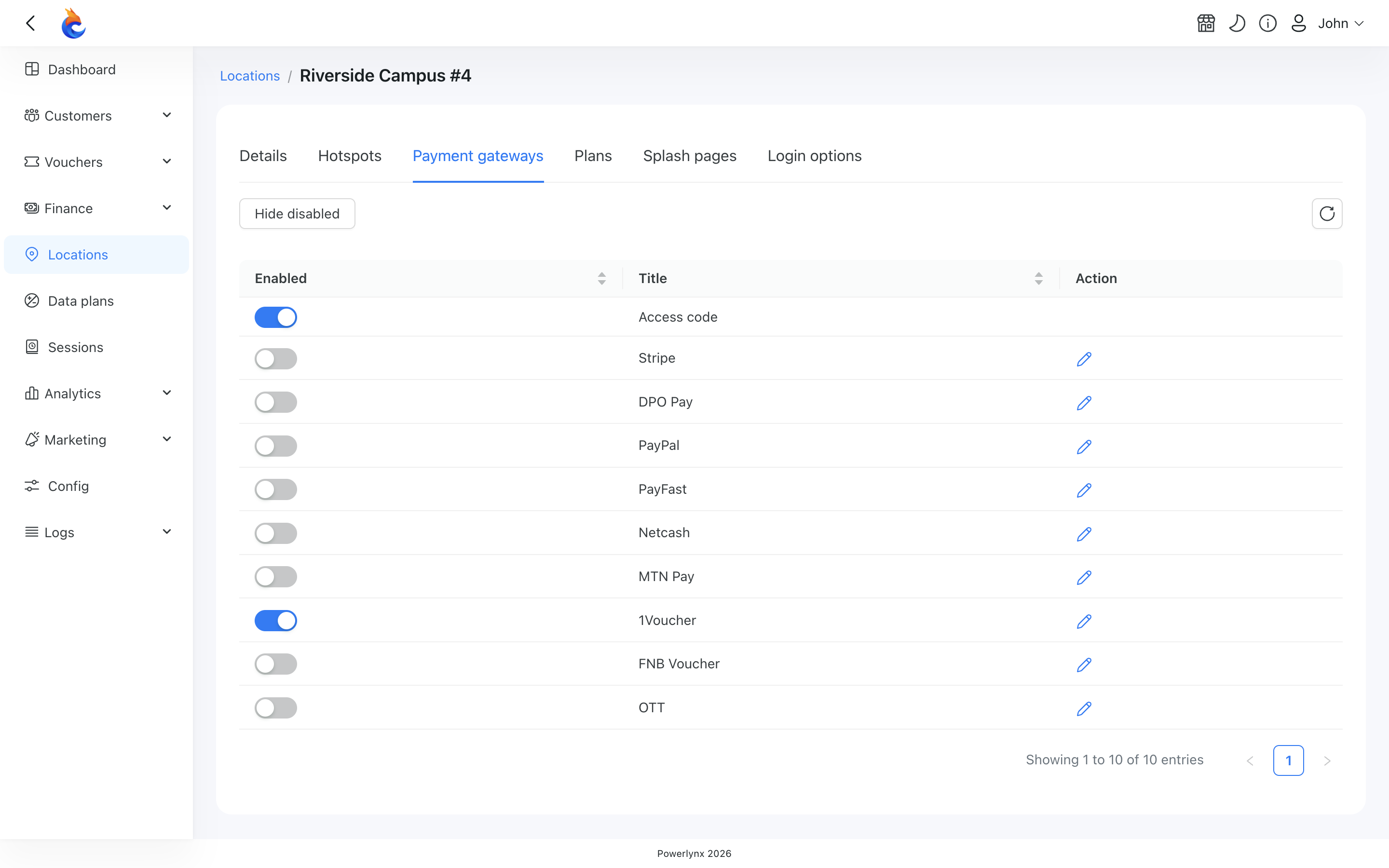
If it's disabled, your clients will not have the option to pay with 1Voucher.
Buying a voucher with 1Voucher
Customers can now buy a voucher on the splash page using 1Voucher. After selecting a data plan, they will be redirected to this page:

After entering a 1Voucher PIN and clicking Apply, the system will connect to 1Voucher and validate the provided PIN.
If the PIN is rejected, the customer sees the reason Flash gives — for example, "The voucher you have entered could not be found."
TIP
If your customers see "Payment is temporarily unavailable. Please try again later or contact support.", Flash has refused your gateway settings rather than the voucher, and the voucher was not charged. Check the Flash platform, credentials, environment and any override addresses in the 1Voucher configuration.
If the customer pays with a 1Voucher amount higher than the price of the data plan in Powerlynx, a new voucher code will be sent to the provided phone number:
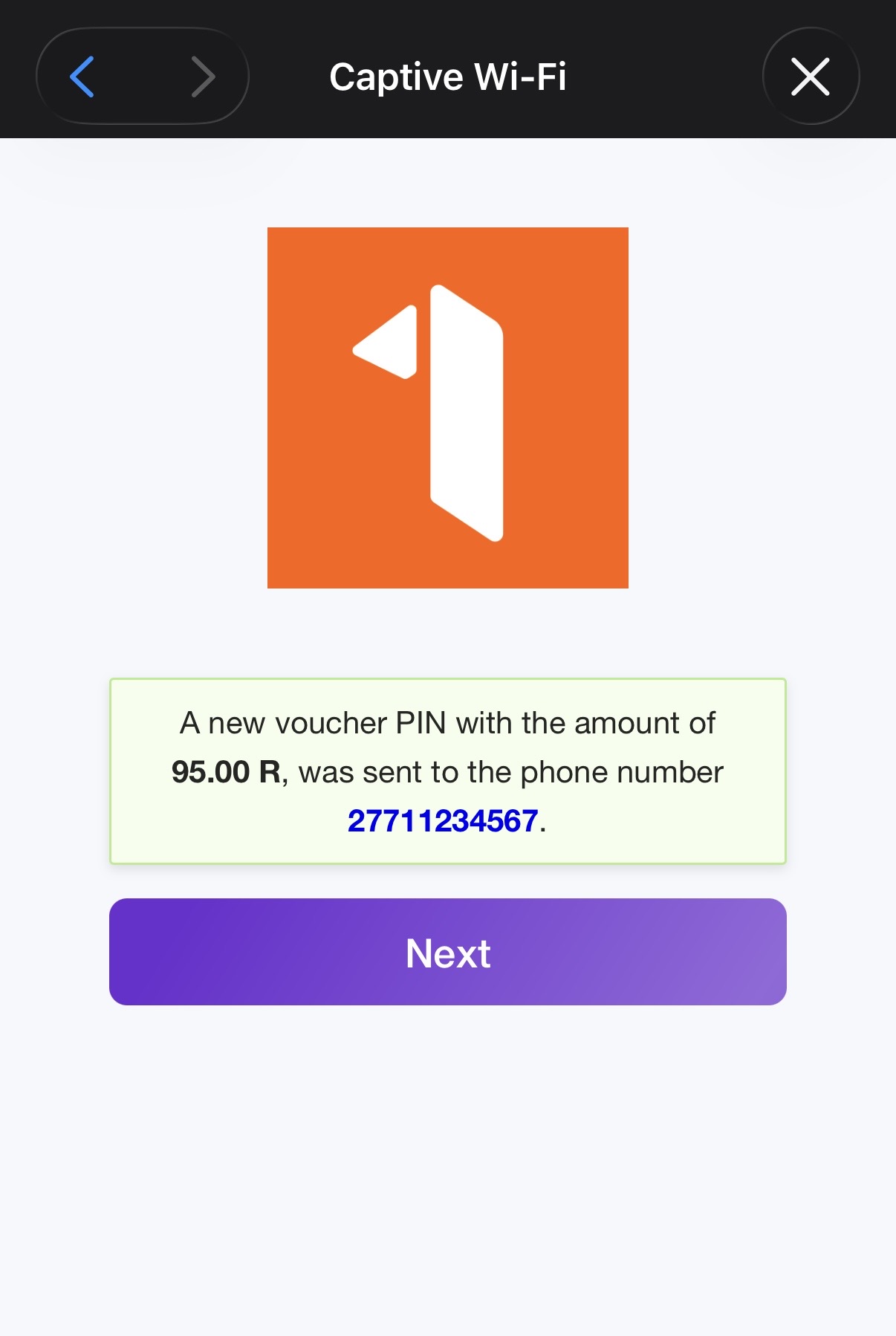
In this example, the data plan price was R5, and the 1Voucher amount was R100. A new voucher with an amount of R95 was generated and sent to the customer.
You can track 1Voucher payments under Finance/Payments:
