Global hotspots
A global hotspot is a single NAS (router) that serves many locations at once. Instead of being tied to one location, it determines the real location of each session from an identifier the router sends with every request, and matches that identifier against the list of locations you allow it to serve.
Use a global hotspot when several sites share one connection to Powerlynx — for example, one VPN tunnel with several hardware units behind it — or whenever a single device needs to serve more than one location. Global hotspots support every connection type (WireGuard, Public IP, OpenVPN, IPSec, and existing VPN), just like a per-location hotspot.
Where to find them
Global hotspots are managed under Config → Networking → Global hotspots, next to VPN Connections.
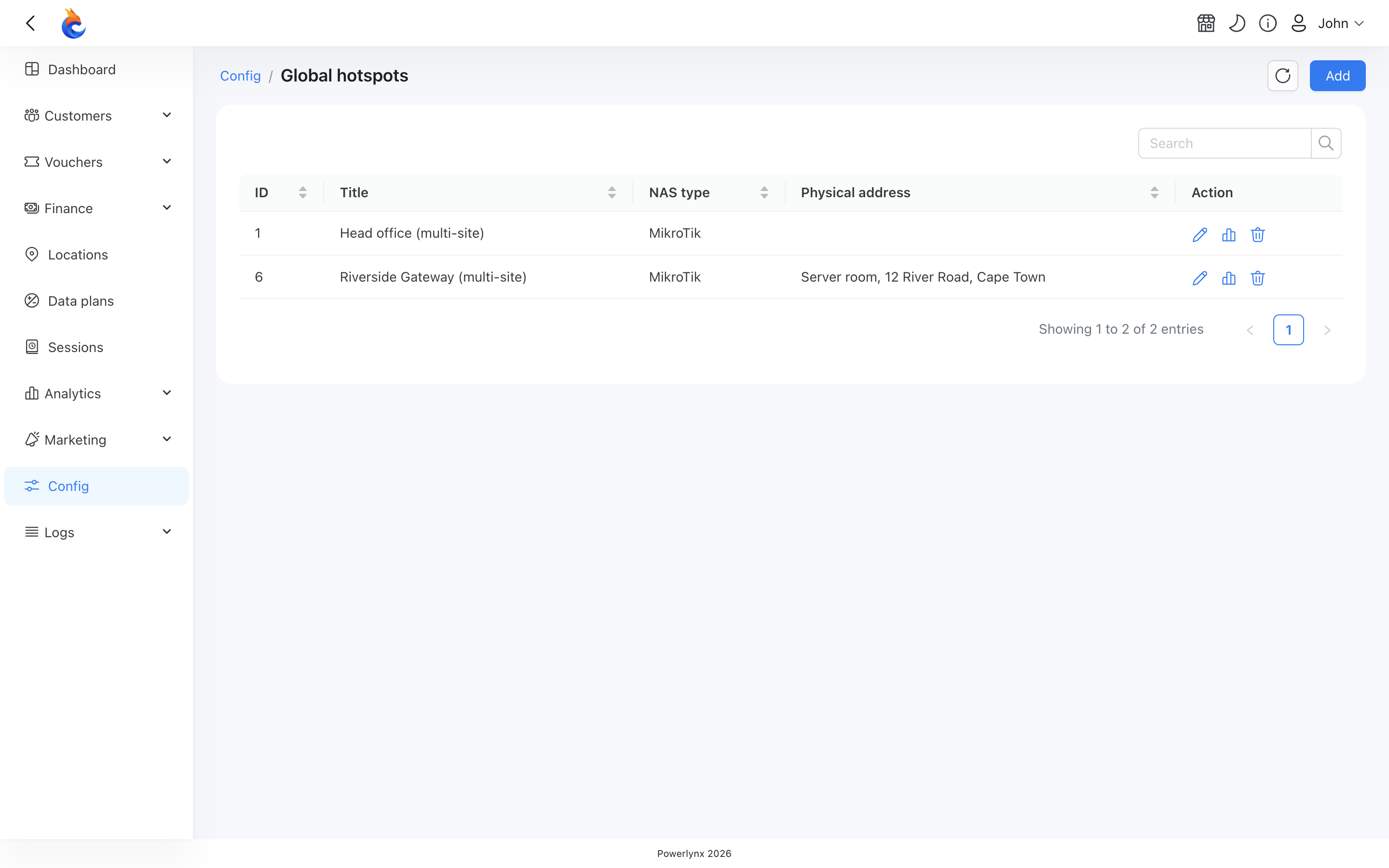
The list shows every global hotspot with its NAS type and address. From here you can Add a new one, or use the row actions to Edit it, view its Online customers, or Delete it.
Creating a global hotspot
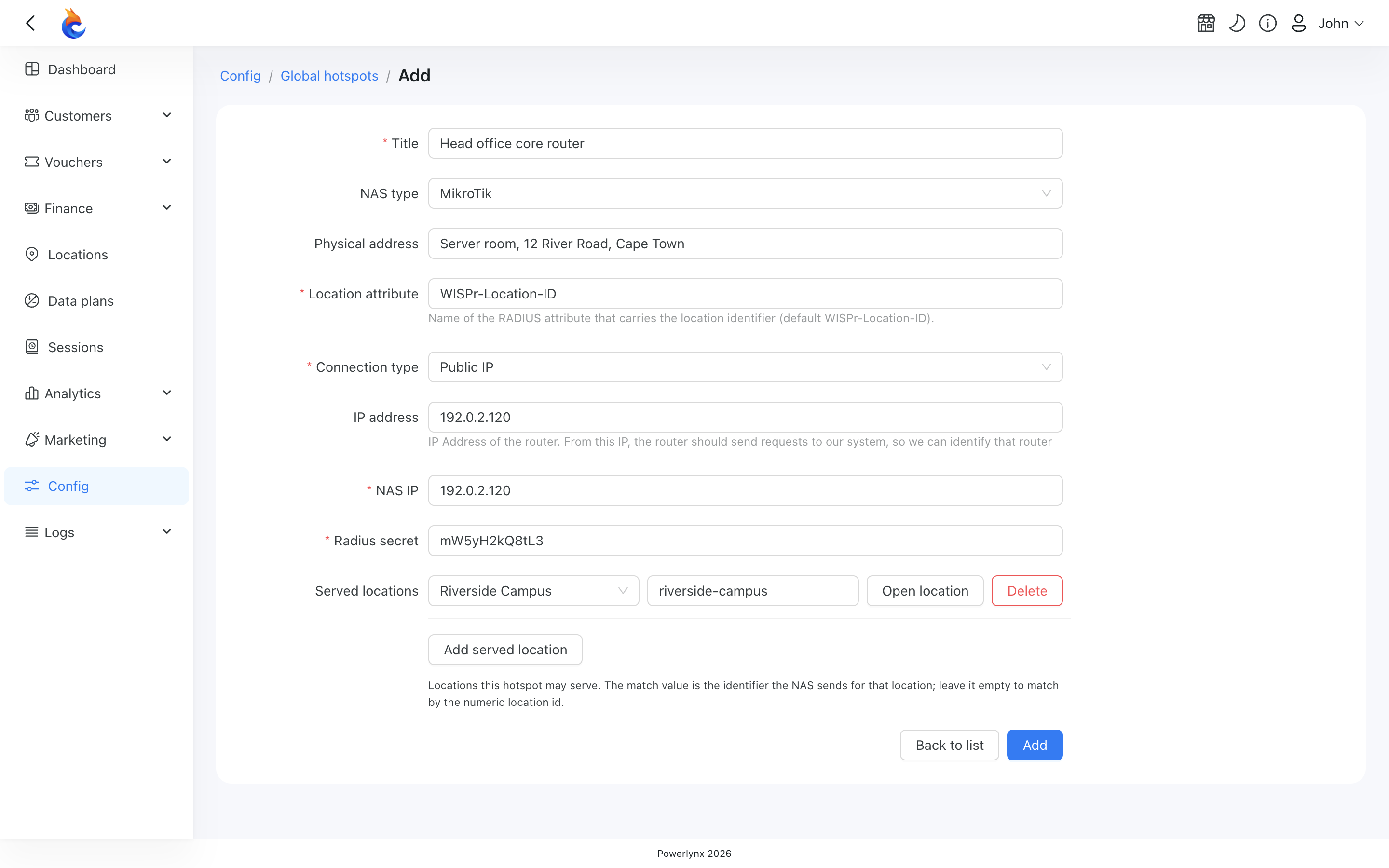
Creating a global hotspot is much like adding a normal hotspot, except you don't pick a single location. Instead you set:
- Location attribute — the identifier the router uses to tell Powerlynx which site a session belongs to. The default is
WISPr-Location-ID; change it only if your equipment reports the location under a different name. - Connection type — any type is supported. For VPN-backed types (WireGuard, OpenVPN, IPSec) you must generate the VPN tunnel before the hotspot can be saved.
- Served locations — the locations this hotspot is allowed to serve. For each one you can add a match value: the identifier the router sends for that site. Leave the match value empty to match by the location itself. You can even save a hotspot with no served locations yet — it simply won't grant anyone access until you add some.
TIP
The match value is how Powerlynx maps "what the router sends" to "which of your locations it means". Give each served location a unique match value so sessions are always attributed to the right place.
How a session's location is decided
When someone connects through a global hotspot, Powerlynx reads the location attribute from the router's request and looks it up in the hotspot's served-locations list:
- If it matches an allowed location, the session — and any voucher or trial — is scoped to that location.
- If it doesn't match any allowed location, access is refused. A global hotspot only serves the locations you've listed.
Usage and sessions are recorded against the real location, so your reports stay accurate.
Editing a global hotspot
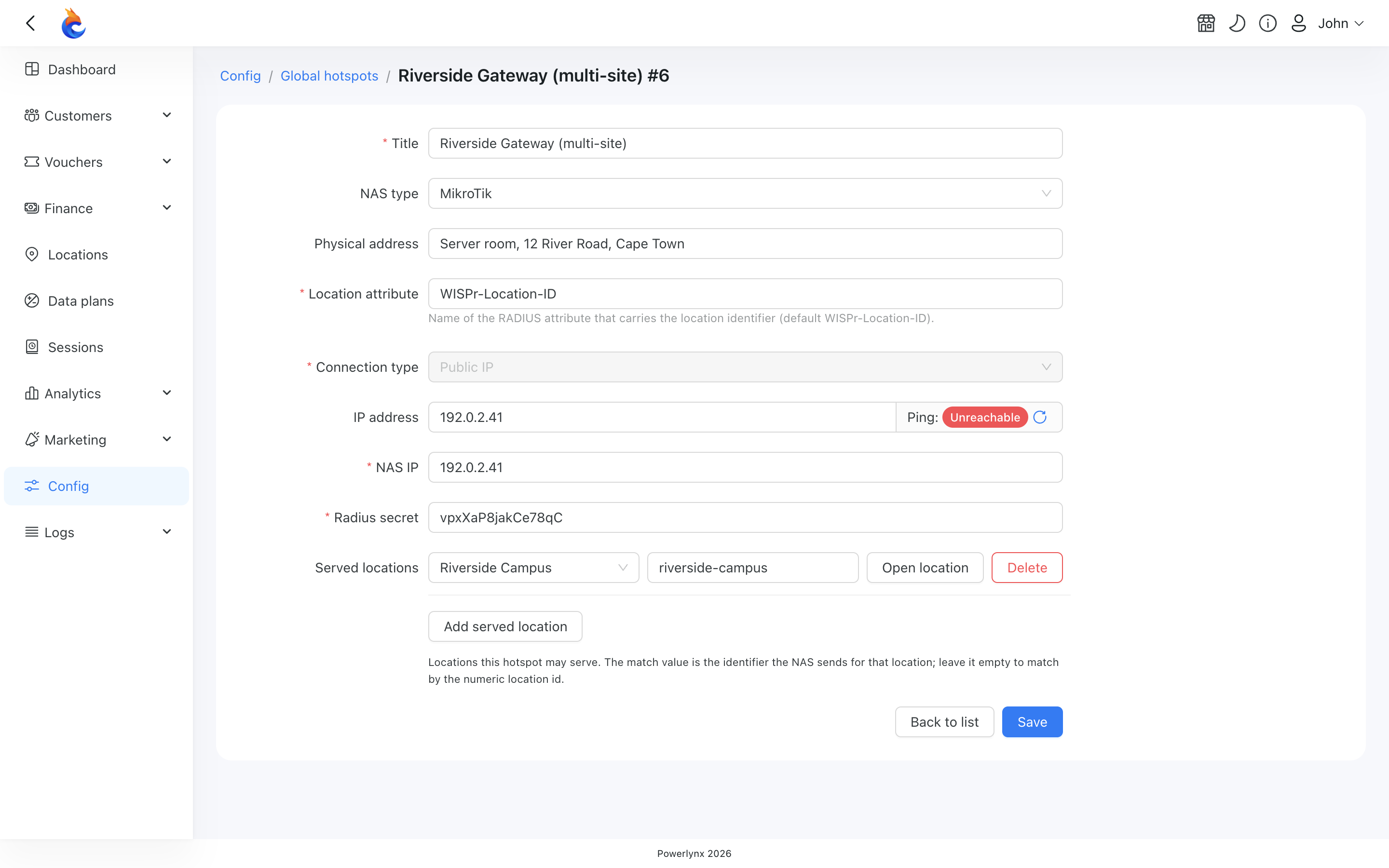
When editing a global hotspot:
- The connection type can't be changed (the same as for per-location hotspots).
- A live Ping indicator next to the IP shows whether the hotspot can reach Powerlynx.
- The served-locations editor lets you add or remove locations, each with an Open location shortcut.
WARNING
A global hotspot can't be deleted while it still serves any location. Unlink its served locations first, then delete it.
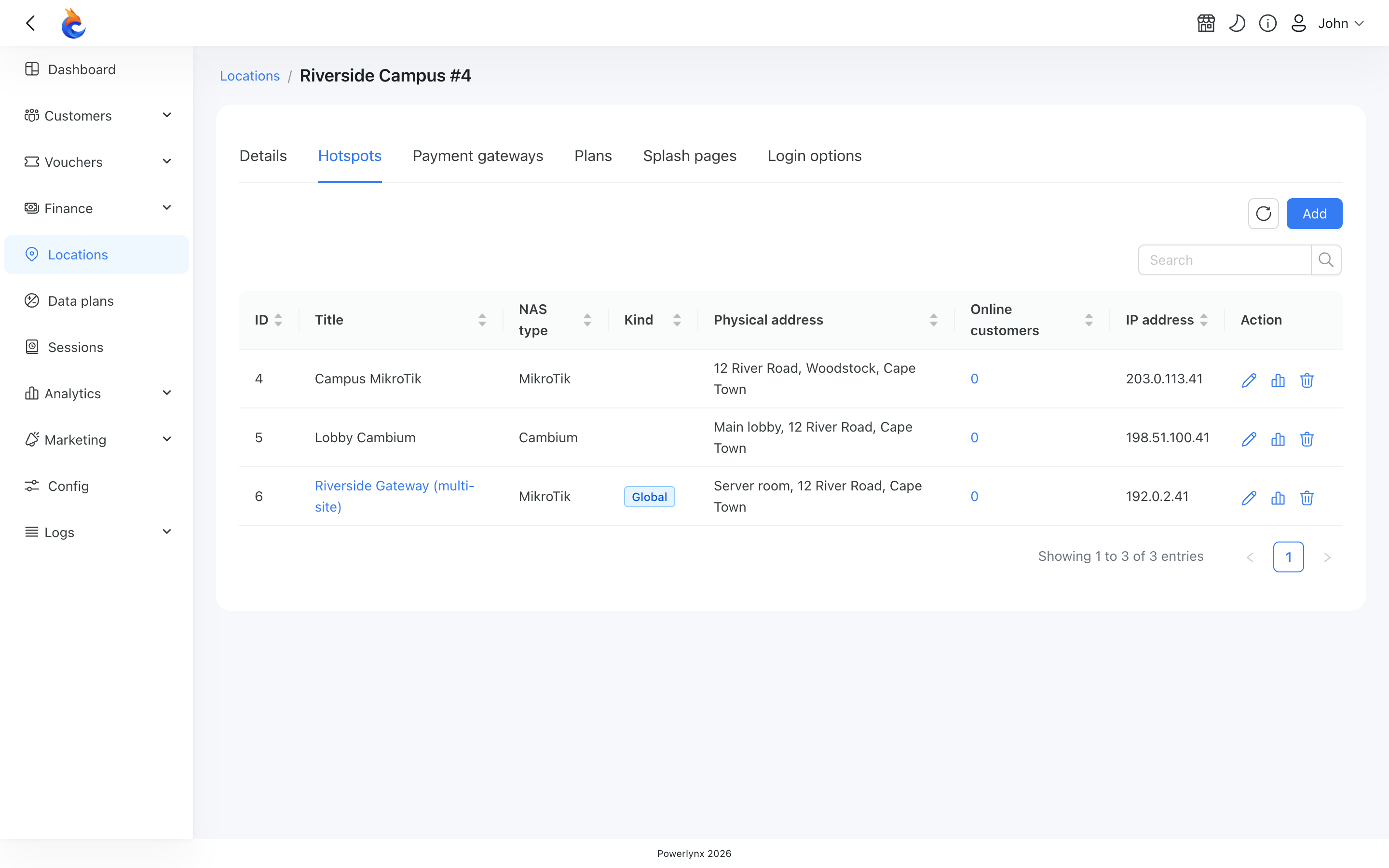
Seeing global hotspots on a location
Each location's Hotspots tab also lists any global hotspots that serve it, marked with a Global badge that links straight to the global hotspot's page. There, the action is Unlink from location — which detaches just that one location — rather than a delete.