Payments and payment records
Powerlynx keeps two separate screens under Finance, and the difference between them matters when you have to work out what happened to a customer's money:
- Payments — the money Powerlynx actually accepted. One row per completed payment, each linked to the voucher it produced.
- Payment records — every payment attempt that reached Powerlynx, completed or not, with its status and the gateway's error message. This is where an attempt that never finished shows up.
Payments
Finance → Payments lists completed payments. Each row shows the payment gateway, the customer, the amount, the receipt number, the date and a description from the gateway (for example its transaction reference) — and a Voucher column linking straight to the voucher that payment created. That link is the fastest way to answer "what did this customer actually get for their money".
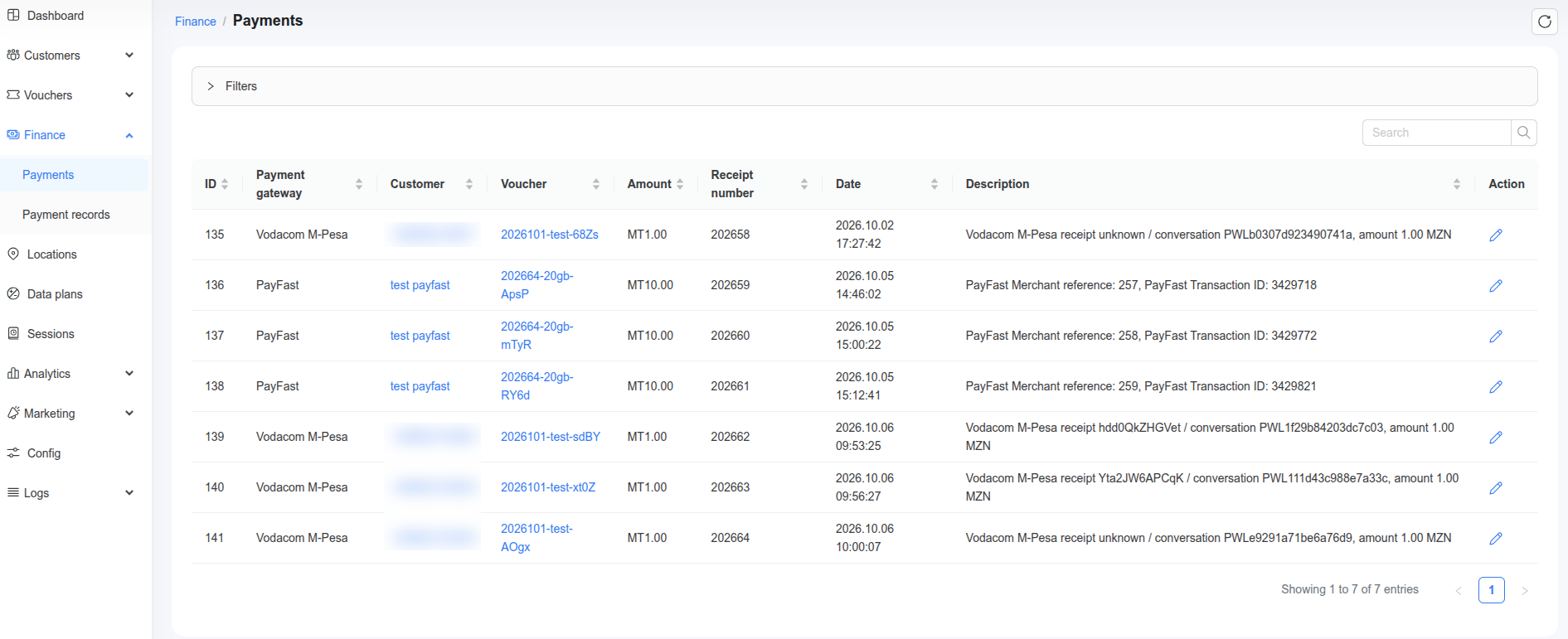
Open Filters to narrow the list by receipt number, date, customer name, voucher, amount, location or payment gateway.
TIP
Payments are created by the payment gateways, or when you finalize a payment record. A voucher you generate manually does not produce a payment row.
Payment records
Finance → Payment records lists every payment attempt, whether or not it completed. Each row shows its status, the payment gateway, the customer (or the reseller organization, for a reseller's purchase), the amount, a description and the date. When an attempt fails, the Description column shows the reason.
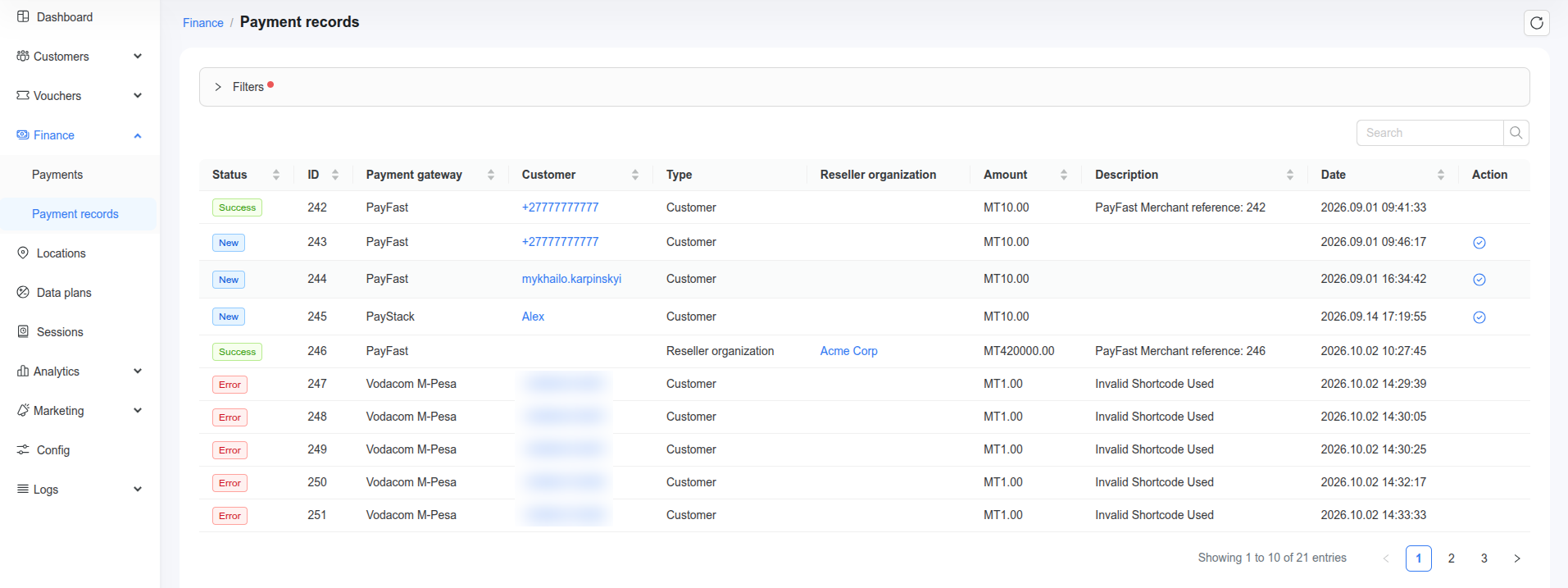
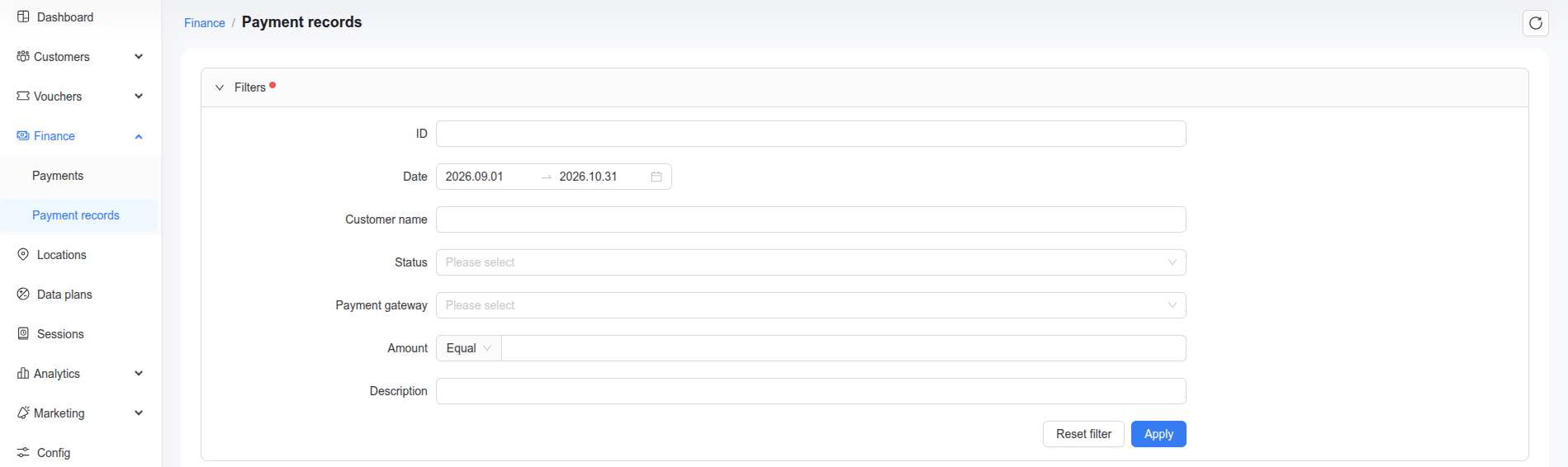
Open Filters to search by record ID, date, customer name, status, payment gateway, amount or description. For the amount you can choose Equal, More or Less. Reset filter clears everything you set.
TIP
Both Payments and Payment records open on the current month. If you are looking for an older payment or attempt, change the Date range in the filters first.
The status is what you read first:
| Status | What it means |
|---|---|
| Success | The payment completed and a voucher was created. |
| New | The attempt was created when the customer chose to pay, but no confirmation has arrived. No voucher has been created for it. |
| Pending | The gateway reported the payment as still processing. |
| Error | The payment failed or was cancelled. The Description column says why. |
Does Powerlynx check a payment again?
Some gateways ask the provider again for the result of an unfinished payment; others rely only on the provider's notification.
| Gateway | Checks again | What happens if there is still no result |
|---|---|---|
| Safaricom M-Pesa, M-PAiSA, Vodacom M-Pesa | Yes, for up to 24 hours | The record stays New |
| Paystack, DPO Pay | Yes, for a short time after the payment | The record moves to Error |
| Selcom | Yes, for 15 minutes | The record moves to Error |
| MTN MoMo | Yes, for up to 24 hours | The record stays New |
| PayFast, Netcash, Stripe, PayPal, Xendit and others | No — they rely on the provider's notification | The record stays New |
A record that stays New will not complete on its own. Check the payment in your gateway account and, if the money arrived, finalize the record.
A customer paid but did not get online
This is the most common reason to open these screens. Work through it in order — the usual outcome is that the payment never completed, so no voucher was ever created.
Open
Finance → Payment recordsand find the customer's attempt by date and amount.If the status is
New, no voucher was created. Check your account with the payment provider:- The money arrived — finalize the record. This creates the payment and the voucher together, linked to the customer's device.
- The money did not arrive — nothing is owed; the customer can simply try again.
If you cannot finalize the record, issue a voucher manually instead (next section).
If the status is
Success, a voucher exists. OpenFinance → Payments, find the same payment and follow its Voucher link.Check whether that voucher was ever used. Do not go by its status: a purchased voucher is created active straight away, and its validity starts counting from the moment of payment rather than from the customer's first login. What tells you is the traffic used and time online used on the voucher, together with the customer's Sessions tab. All zero and no sessions means the customer never got online.
- Voucher still Active — resend the same code, there is no need to create another one.
- Voucher already Expired — its validity ran out while it went unused. An expired voucher cannot be reactivated, so the customer needs a new one.
Finalizing a payment stuck in "New"
When a customer buys a plan through a payment gateway, Powerlynx creates a payment record in status New and sends the customer to the gateway. The record is completed — and the payment, the voucher and the customer's internet access are created — only when the gateway confirms the payment.
Occasionally that confirmation never arrives. The customer has been charged, but the record stays in New: there is no payment in your reports, no voucher, and no access. Instead of handing the customer a separate voucher that isn't linked to anything, you can finalize the record yourself:
- Go to
Finance → Payment records. - Find the record stuck in New or Pending and click Finalize. The action only appears on records that can be finalized.
- Read the warning and confirm.
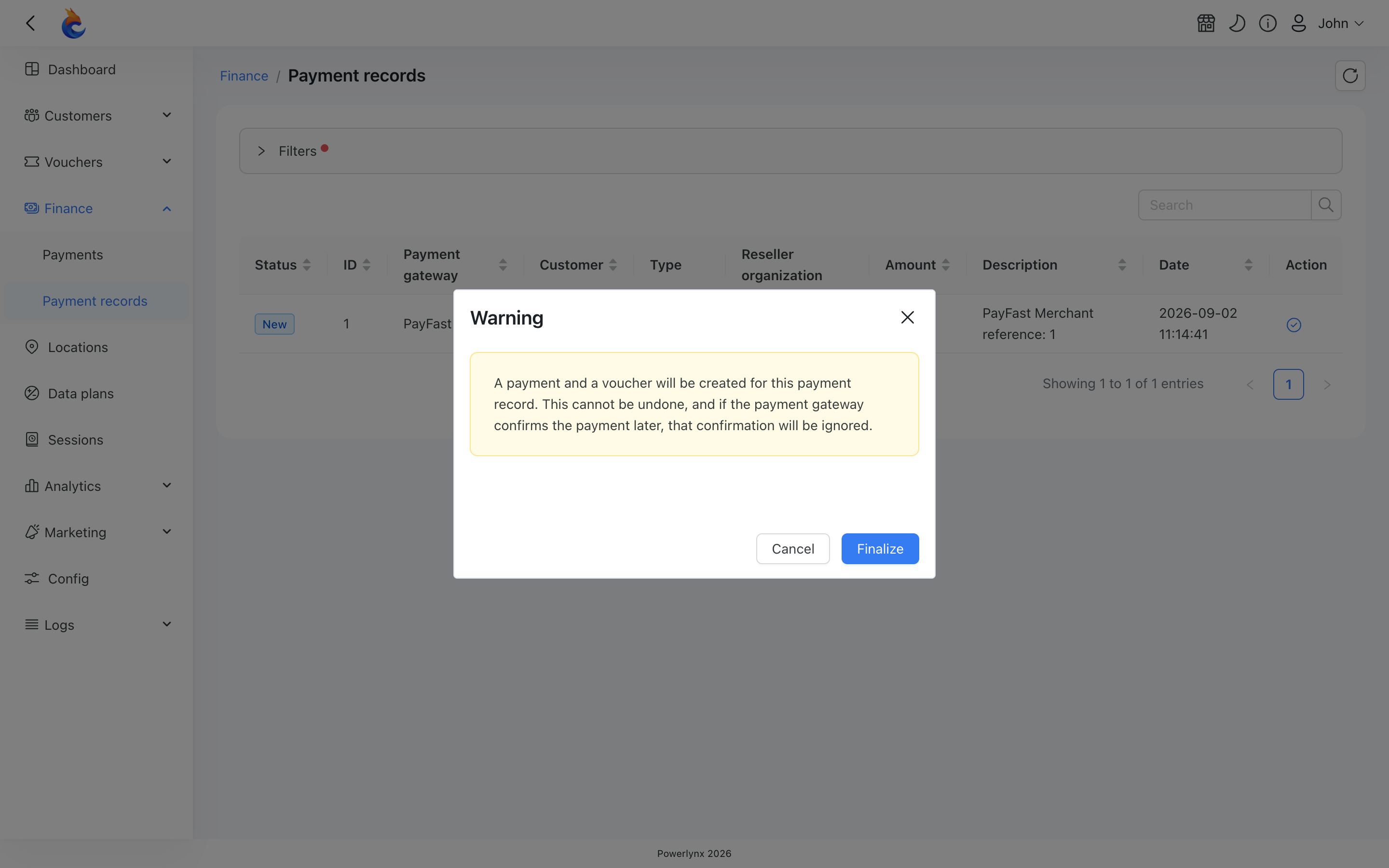
Nothing has to be typed in — the customer, the plan and the amount are taken from the record. The record moves to Success, a payment is recorded, and a voucher for the record's plan is created for the customer and linked to their device, so their access starts when they reconnect.
WARNING
Finalize takes your word that the money really arrived — it does not check with the gateway. Confirm the payment in your gateway account first. A record can be finalized only once, and a gateway confirmation that turns up afterwards is ignored, so the customer never gets a second voucher for the same payment.
A few things to know:
- Only plan purchases can be finalized. Reseller voucher batches, portal voucher batches and reseller balance top-ups don't offer the action, and neither do records already in Success or Error.
- If something is missing — the record has no plan, no customer, or no device details — Finalize is refused and nothing changes. The message tells you what is missing.
- If the voucher can't be created, the record goes back to New so you can try again once the cause is fixed.
- Manual payments are easy to tell apart. The payment record and the payment get the description Finalized manually by <administrator>, so you can filter Payment records to list every manually finalized one and see who did it.
- Who can use it: only super administrators can finalize a payment record.
Issuing a voucher after a failed payment
Open the customer under Customers, go to the Vouchers tab and click Generate voucher. The customer is filled in for you; choose the plan, the location and the expiration.
Because the voucher is assigned to that customer's account, they do not have to type a code: they reconnect, enter their phone number as usual, and Powerlynx picks up the voucher and activates it. If you would rather hand them a code to enter, enable Login using access code for that location.
WARNING
Use either Finalize or a manual voucher for the same payment — never both. Finalize does not check whether you already issued a voucher by hand, so doing both gives the customer two vouchers and records the payment twice.
A manually generated voucher creates no payment row. Add a short note in the voucher's Remark field so the reason is traceable later.
Related
- Vouchers — voucher statuses, limits and settings.
- Payment gateways — connecting a gateway.
- Finance analytics — revenue reporting.