Buying vouchers from the portal
What is it?
Buying vouchers from the portal lets a logged-in customer purchase vouchers for themselves, up front, straight from the customer portal — without waiting for you or a reseller to hand them a code. The customer opens a catalogue of the plans you allow, picks how many of each they want, pays online through one of your payment gateways, and receives a queue of vouchers that activate one after another automatically.
It is ideal for customers who want to stock up — for example buying ten day passes at once and using them over the following weeks. You stay in full control of what can be sold: only the plans and payment gateways you enable ever appear.
INFO
Portal purchases are sold at your normal retail price (unlike the Reseller Portal, where resellers buy at a wholesale discount).
Enabling portal voucher purchase
Everything an admin needs is on one screen: Config → Portal → Voucher purchase. Choose the plans and payment gateways to offer, then click Save.
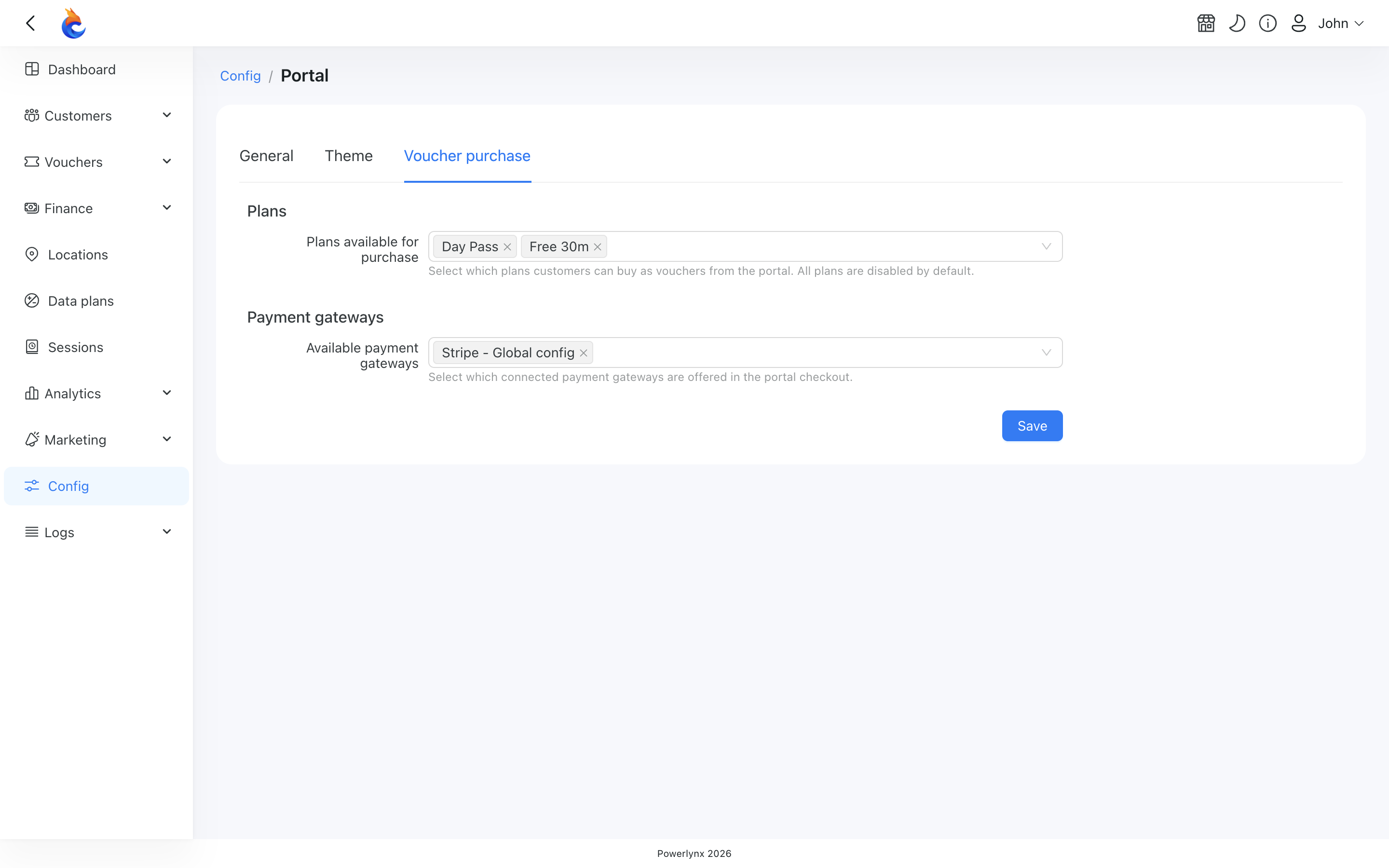
Plans available for purchase
Pick the plans a customer may buy as vouchers from the portal. Only active, voucher-capable plans appear in the list. Nothing is selected by default, so portal purchase stays switched off until you explicitly enable at least one plan.
TIP
The catalogue always reflects your live plans. If you disable or remove a plan elsewhere, it disappears from the portal catalogue immediately — you don't have to come back and un-tick it here.
Available payment gateways
Choose which of your already-connected payment gateways customers can pay with at checkout. If any plan you offer is paid (price above 0), you must enable at least one gateway — otherwise saving is blocked. If every plan you offer is free, no gateway is needed.
What your customers see
The whole buying flow lives in the customer portal (the logged-in end-user area), not the admin panel.
1. Start a purchase
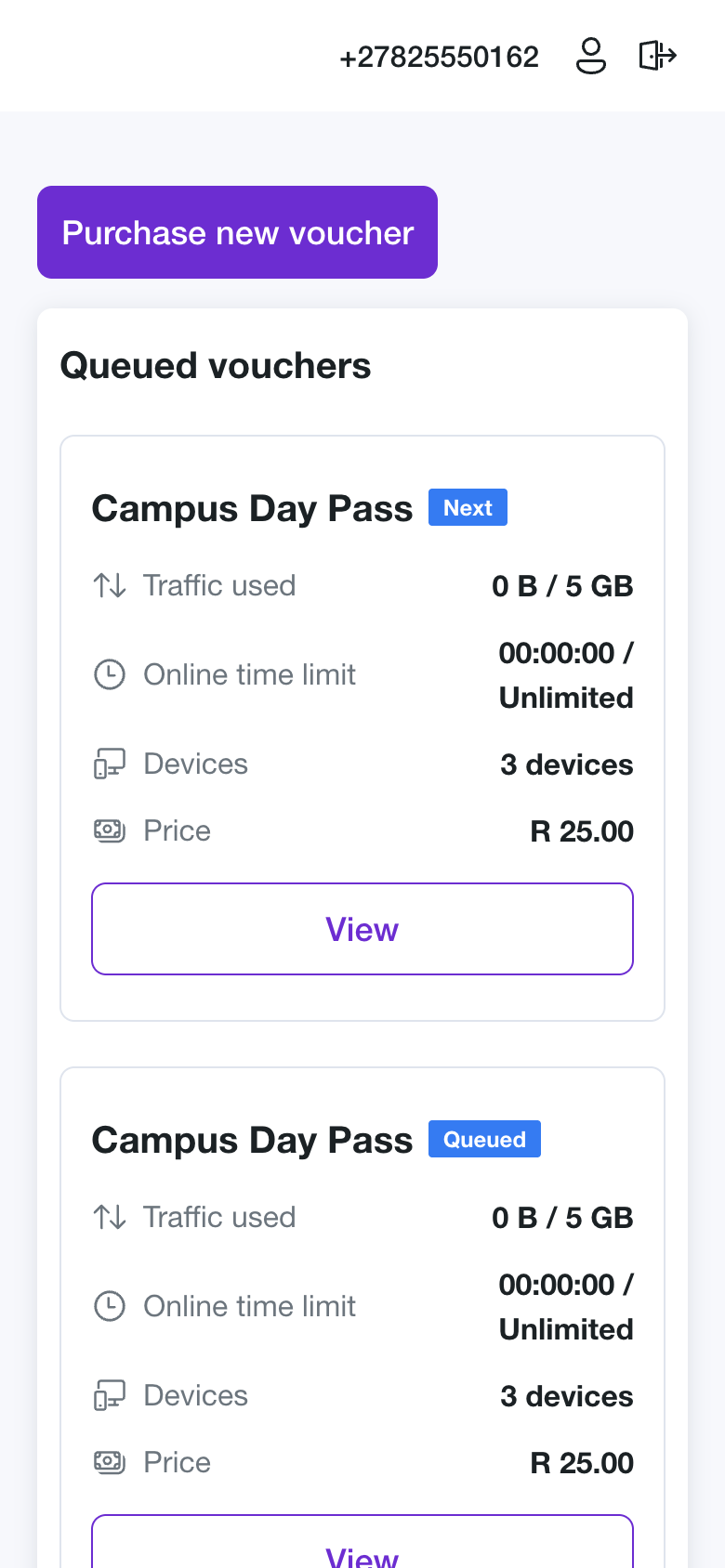
On My vouchers, above their current vouchers, the customer taps + Purchase new voucher.
2. Choose plans and quantities
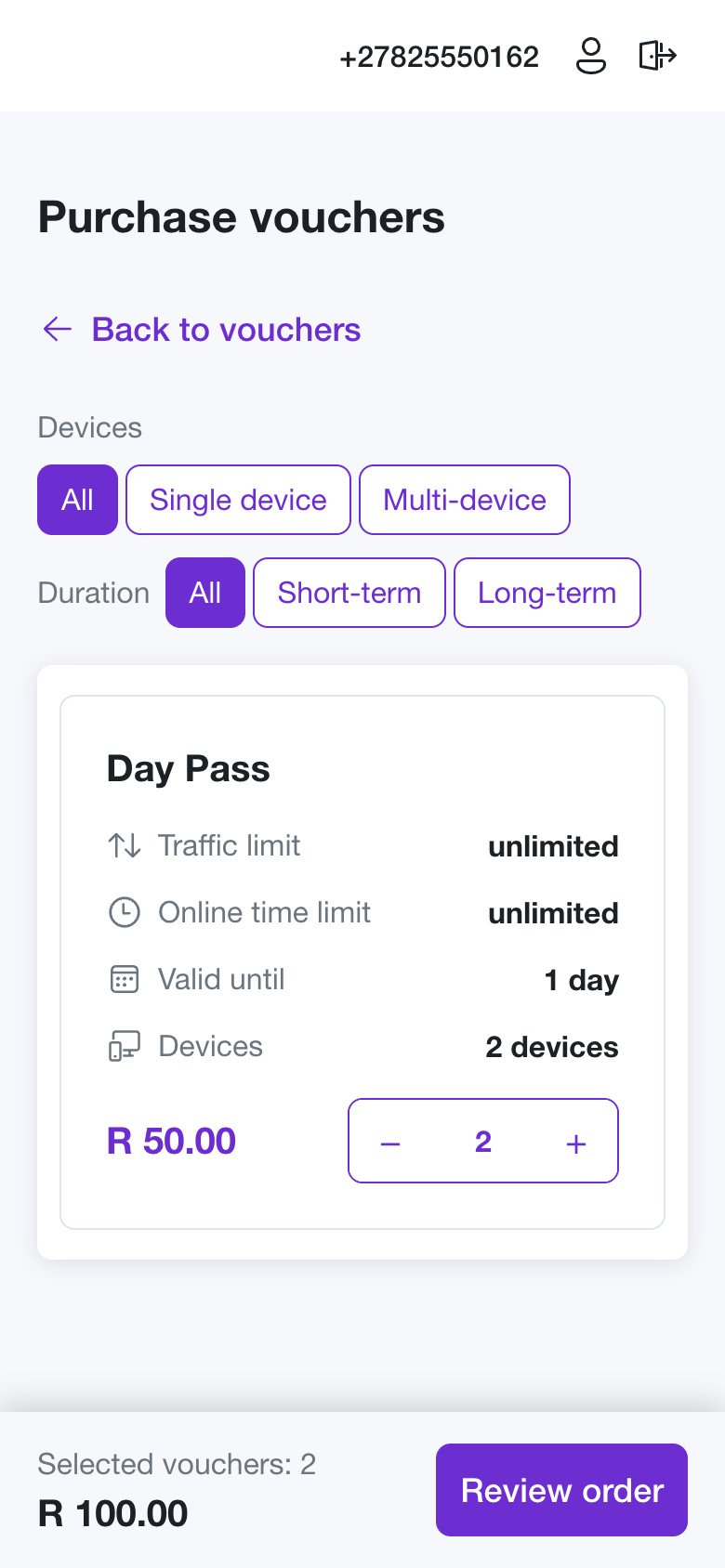
The catalogue shows every plan you enabled. Each card shows the plan's traffic limit, online-time limit, validity, how many devices the voucher covers at once (1 device, 3 devices, Unlimited devices) and the price, with a −/quantity/+ stepper. Different plans can be mixed in one order (for example 2× Daily Pass + 1× Weekly Pass). A sticky cart bar at the bottom keeps a running count and total, recalculated after every change. The customer continues once at least one voucher is selected.
Filtering the catalogue
If you offer many plans, the customer can narrow the list with two filters above it:
- Devices — All (default), Single device (exactly one), or Multi-device (two or more, including unlimited).
- Duration — All (default), Short-term (up to and including one day), or Long-term (longer than a day, including plans that never expire).
The two filters combine, so Multi-device together with Long-term shows only multi-device plans that last more than a day.
INFO
Filtering only changes what is shown. Quantities the customer has already picked stay in the cart and the running total keeps counting them, even while the plan they belong to is filtered out of view.
If no plan matches, the list is replaced by No plans match your filters and a Clear filters button that puts both filters back to All.
TIP
Plans with no limit are deliberately placed in the widest bucket of each filter — an unlimited-devices plan counts as Multi-device, and a plan that never expires counts as Long-term. That way an unlimited plan is never hidden by both filters at once.
3. Review and pay
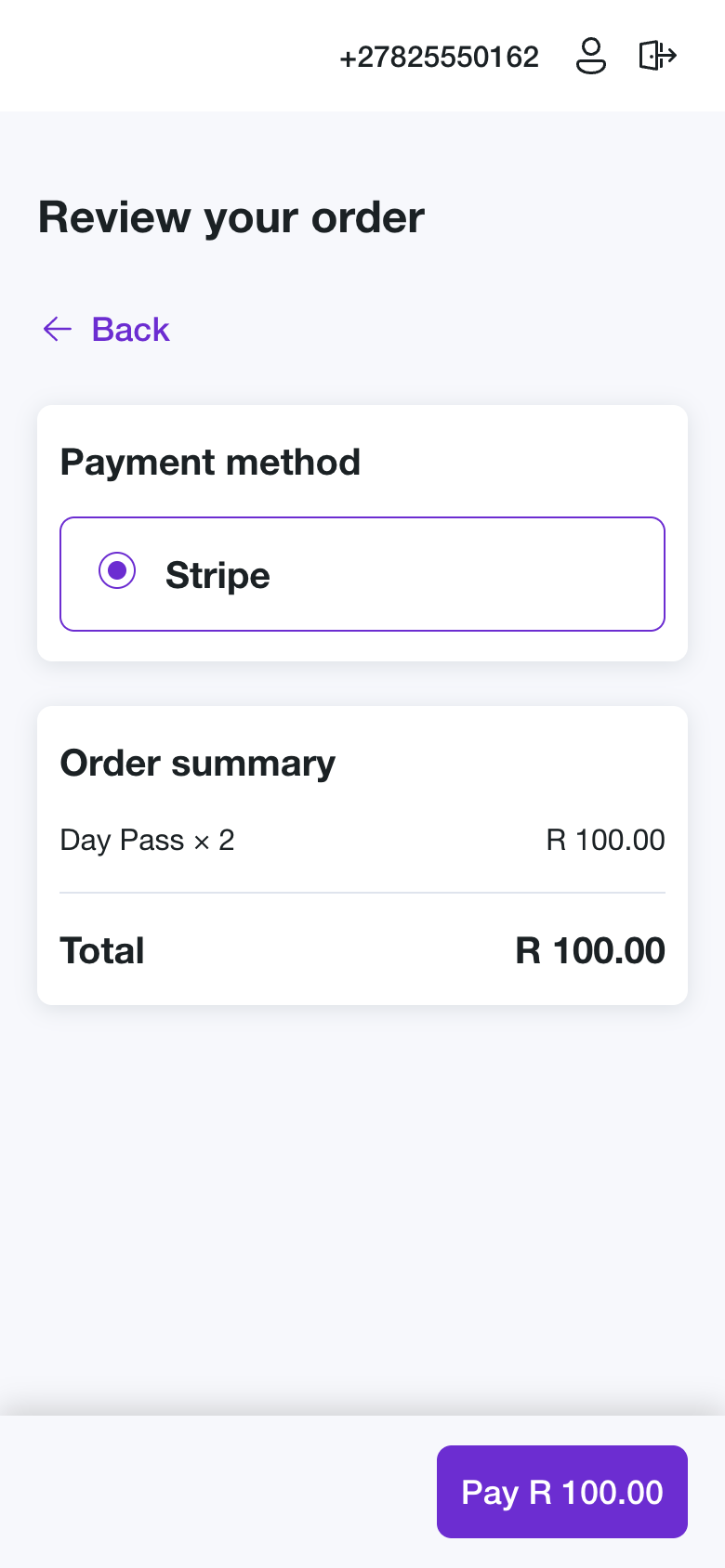
On the review step the customer picks a payment method from the gateways you enabled, checks the per-plan subtotals and the grand Total, and confirms with the Pay button (labelled with the order total). They are then taken to the gateway's secure payment page. A Back button returns them to the catalogue with their cart intact if they want to change the order first.
TIP
All prices — in the catalogue, the cart, and on the Pay button — are calculated on the server. The customer's device never adds up the money, so a stale or tampered cart can't change what they are charged.
4. Payment successful
After a successful payment the customer lands on a Payment successful screen listing the vouchers they just bought, all in New status with the first one marked Next. From here they return to My vouchers, where the new vouchers appear as a queue.
WARNING
Vouchers are created only after the payment succeeds. If the customer cancels or the payment fails, no vouchers are generated and nothing is charged.
How the voucher queue works
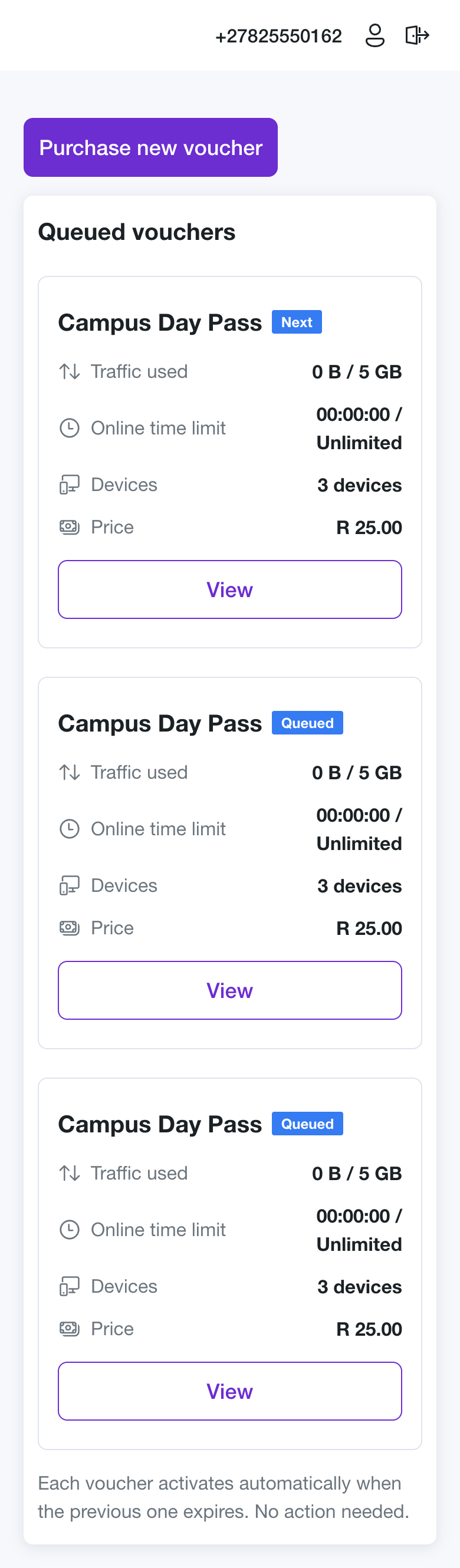
When a customer buys several vouchers they form a queue on their account, and Powerlynx activates them one at a time:
- The customer has one active voucher at a time; the rest wait in the queue.
- On the next connection, the oldest waiting voucher (first bought, first used) activates automatically — the customer never types a code.
- When the active voucher ends — because it expires, or runs out of data or time — the next voucher in the queue takes over the next time the customer connects.
- Time-based vouchers don't count down while they wait. A voucher's clock only starts when it actually activates, so a customer never loses queued time while offline.
- The queue is tied to the customer's account (matched by phone number), so it survives disconnecting and reconnecting.
On My vouchers, waiting vouchers appear in a dedicated Queued vouchers section: the next one to activate is badged Next, and the rest are badged Queued.
INFO
Vouchers bought from the portal can be used at any of your hotspots. The voucher's location is set automatically from the first hotspot the customer connects through, and it stays usable across locations afterwards.
Related pages
- Vouchers — how vouchers and series work in Powerlynx.
- Data plans — the plans customers buy from the portal.
- Reseller Portal — selling vouchers through resellers at a wholesale price instead.