Company information and branding
Powerlynx can carry your company's own name, contact details and branding instead of the defaults. You fill this in once, and it is then used everywhere your customers and your staff see the system — the admin panel, your emails, your splash pages and your message templates.
Where to find it
Open Config → System → Company information.
The page has two parts: Company information for your details, and Branding for your logo and favicon.
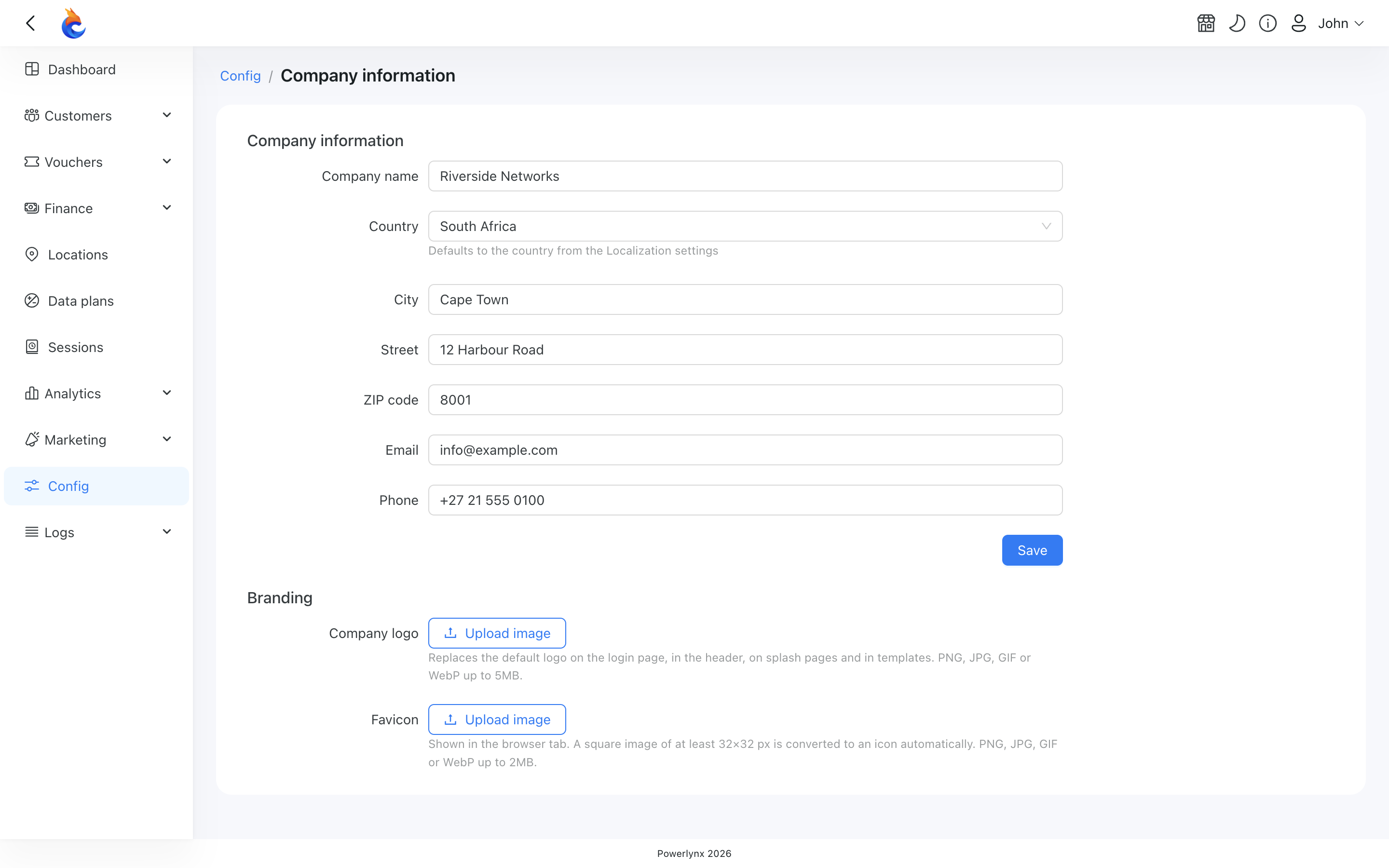
Company information
Fill in the details of your business:
- Name
- Country
- City
- Street
- ZIP code
- Phone
TIP
If you leave Country empty, Powerlynx uses the country you selected under Config → System → Localization, so you do not have to keep the two in step by hand.
These values become variables you can drop into any editable template — SMS texts, voucher messages, customer notifications — as {{ .company.name }}, {{ .company.country }}, {{ .company.city }}, {{ .company.street }}, {{ .company.zip_code }}, {{ .company.email }} and {{ .company.phone }}. Your logo is available in templates too, as {{ .company.logo_url }}.
Your company name also replaces the generic default name on splash pages, but only where nothing more specific is set: a location that has its own company name keeps it, and the tenant company name is used for locations that do not.
Branding
Logo
Upload a PNG, JPG, GIF or WebP image up to 5 MB. Powerlynx converts it to PNG and scales it down to at most 1024 pixels wide, so you can upload a large original without worrying about the file size on the page.
Once uploaded, your logo appears:
- on the admin login page,
- in the admin panel sidebar,
- in the header and footer of the emails Powerlynx sends,
- on your splash pages — as long as that splash page is still using its default logo. If you uploaded a separate logo for a splash page's theme, that one wins for that page.
Favicon
The favicon is the small icon in a browser tab. Upload a PNG, JPG, GIF or WebP image up to 2 MB and at least 32 × 32 pixels. Powerlynx pads it to a square and converts it to a 48 × 48 icon.
Your favicon appears in the browser tab for the admin panel, the customer portal and your splash pages.
INFO
Your logo and favicon are served from fixed addresses that every Powerlynx page already asks for, so a new upload takes effect for everyone without a redeploy and without clearing any cache by hand.
If you upload nothing
Nothing breaks. Where no company logo is uploaded, Powerlynx falls back to what it used before — your reseller's branding if you have one, and the Powerlynx default otherwise. The same is true for the company name: it is only used as a fallback where nothing more specific has been set.