Reseller Portal
What is the Reseller Portal?
The Reseller Portal lets you sell your Wi-Fi vouchers through third-party resellers instead of only directly to end users. You sign up a reseller, give them a wholesale price, and they buy vouchers from you in bulk and resell them to their own customers at their own markup.
This is ideal for cash-based and low-income markets, where end users often pay with cash for a printed voucher rather than with a card through a payment gateway. You keep control of the plans, prices, and locations; the reseller handles the day-to-day selling.
A typical arrangement looks like this:
- You create a reseller organization and give one or more people access to it.
- You set the wholesale price (a discount off the retail plan price) and which plans and locations the reseller may sell.
- The reseller funds their balance — either you top it up for them (for example, after they hand you cash), or they pay you directly through a payment gateway at the moment of purchase.
- The reseller orders a batch of vouchers, which is generated instantly, and distributes them to their customers (printed codes, SMS, and so on).
- You can watch each organization's activity, and reseller-owned vouchers are clearly marked everywhere in your own admin panel.
Setting up a reseller
Reseller organizations are managed under Config → Finance → Reseller & Organizations.
Create an organization
Click Add and fill in the organization's details — name, country, currency, and contact information.
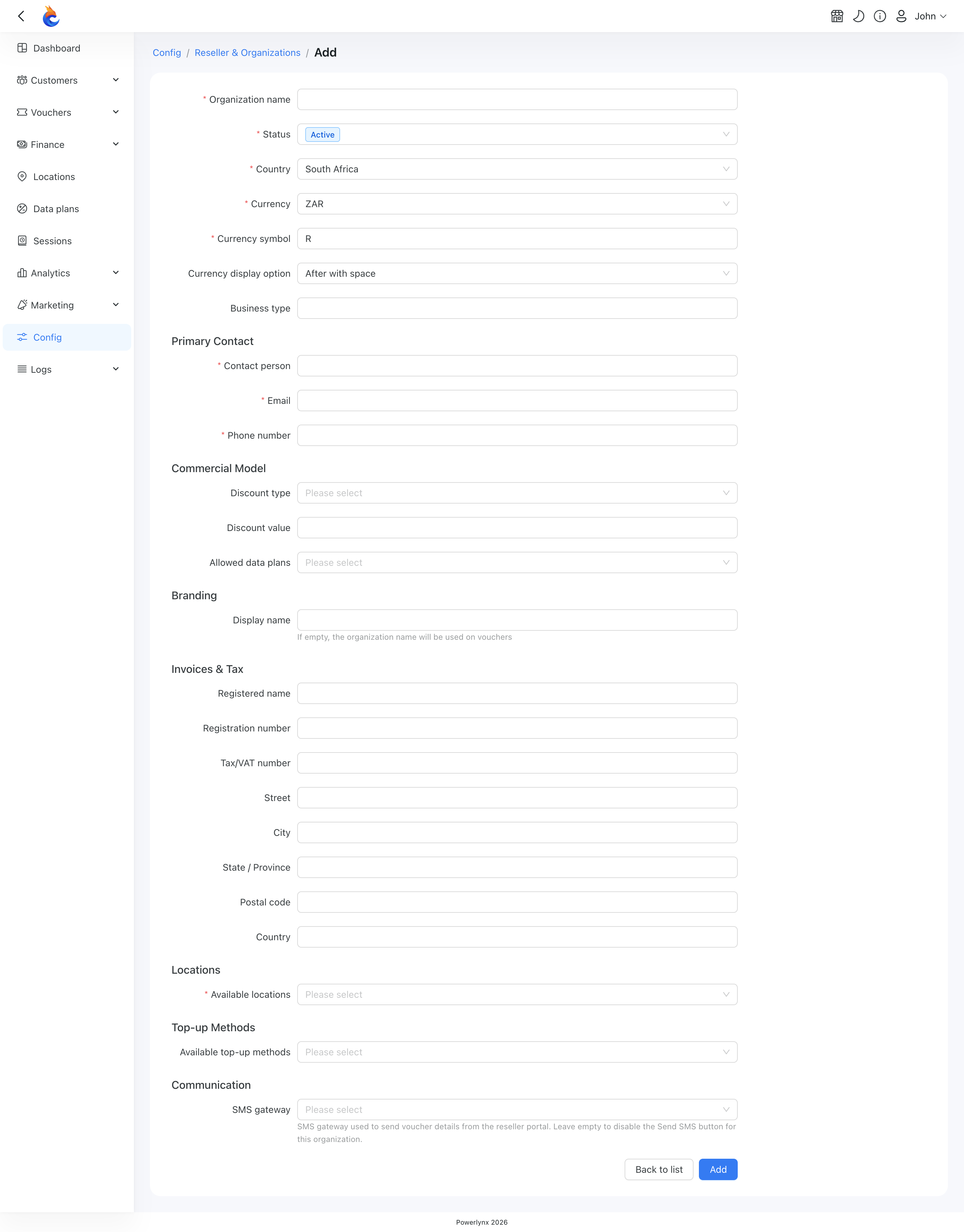
In the organization's settings you also define the commercial terms:
- Available data plans — only the plans you assign here can be ordered by the reseller.
- Available locations — the locations the reseller's vouchers may be sold for. A voucher can be limited to one location or allowed on all of them.
- Available top-up methods — the payment gateways the reseller may use to pay you directly (see Funding a reseller's balance).
- Wholesale discount — the discount off the retail plan price that sets the reseller's wholesale cost. This is the gap the reseller earns their margin from.
- SMS gateway — the gateway used when a reseller sends voucher details to a customer by SMS. Leave it empty to hide the Send SMS button for that organization.
Add members and assign roles
A reseller organization can have several members. Open the Members section to add an admin and give them a role within that organization.
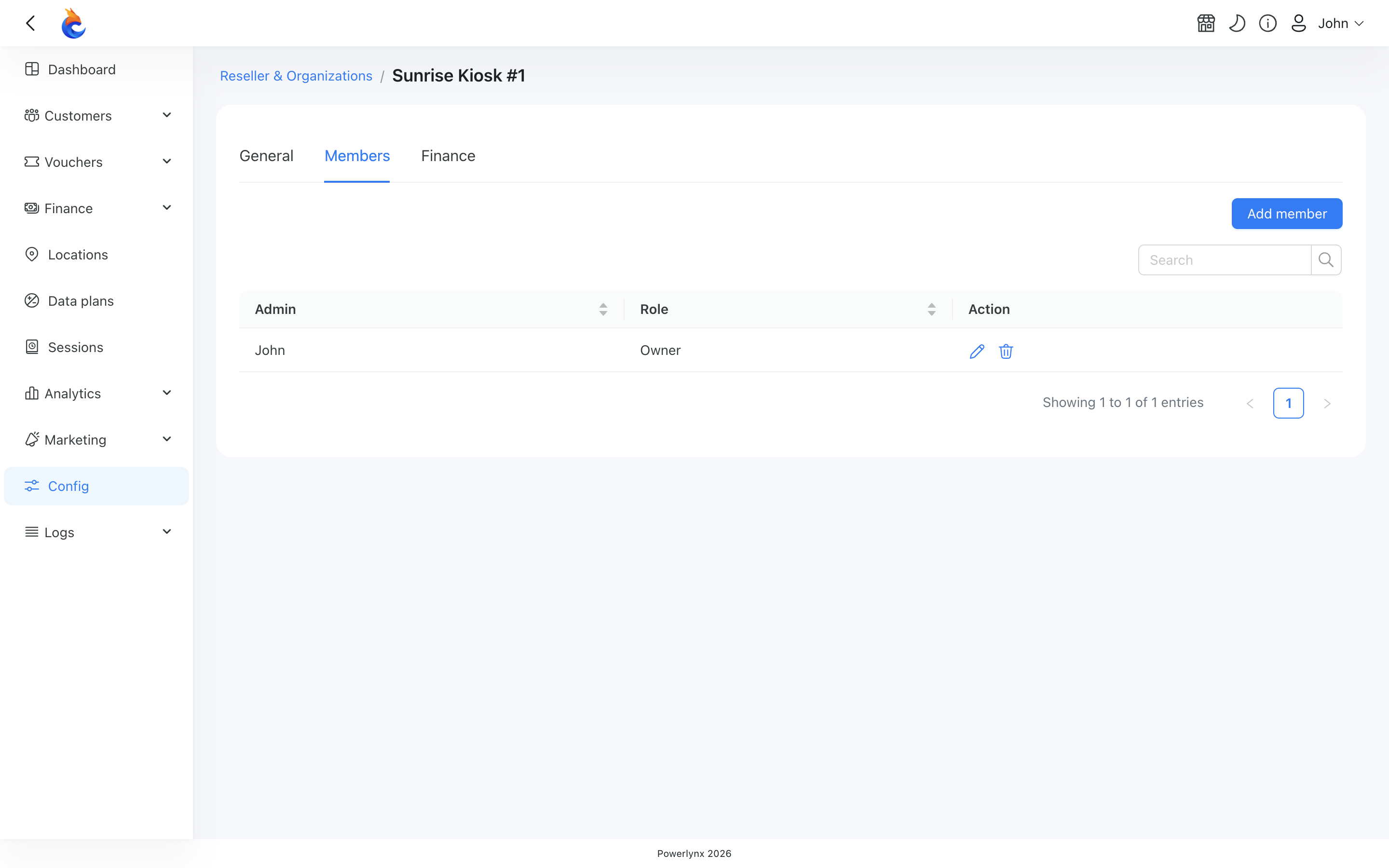
There are three organization roles:
- Owner — full control: orders vouchers, requests balance top-ups, sets the markup, manages members, exports, and sends SMS.
- Manager — works with vouchers, orders new vouchers and sees finances, but cannot change the markup.
- Viewer — read-only access to everything in the organization.
INFO
The same person can hold different roles in different organizations — for example, Owner in one reseller and Viewer in another. Their access is always scoped to the organization they are currently in.
Funding a reseller's balance
Reseller organizations work on a prepaid balance. The balance can never go negative — a reseller can only order vouchers worth up to their current balance.
Open an organization and go to its Finance tab to see the current balance and the full history of every top-up and purchase.
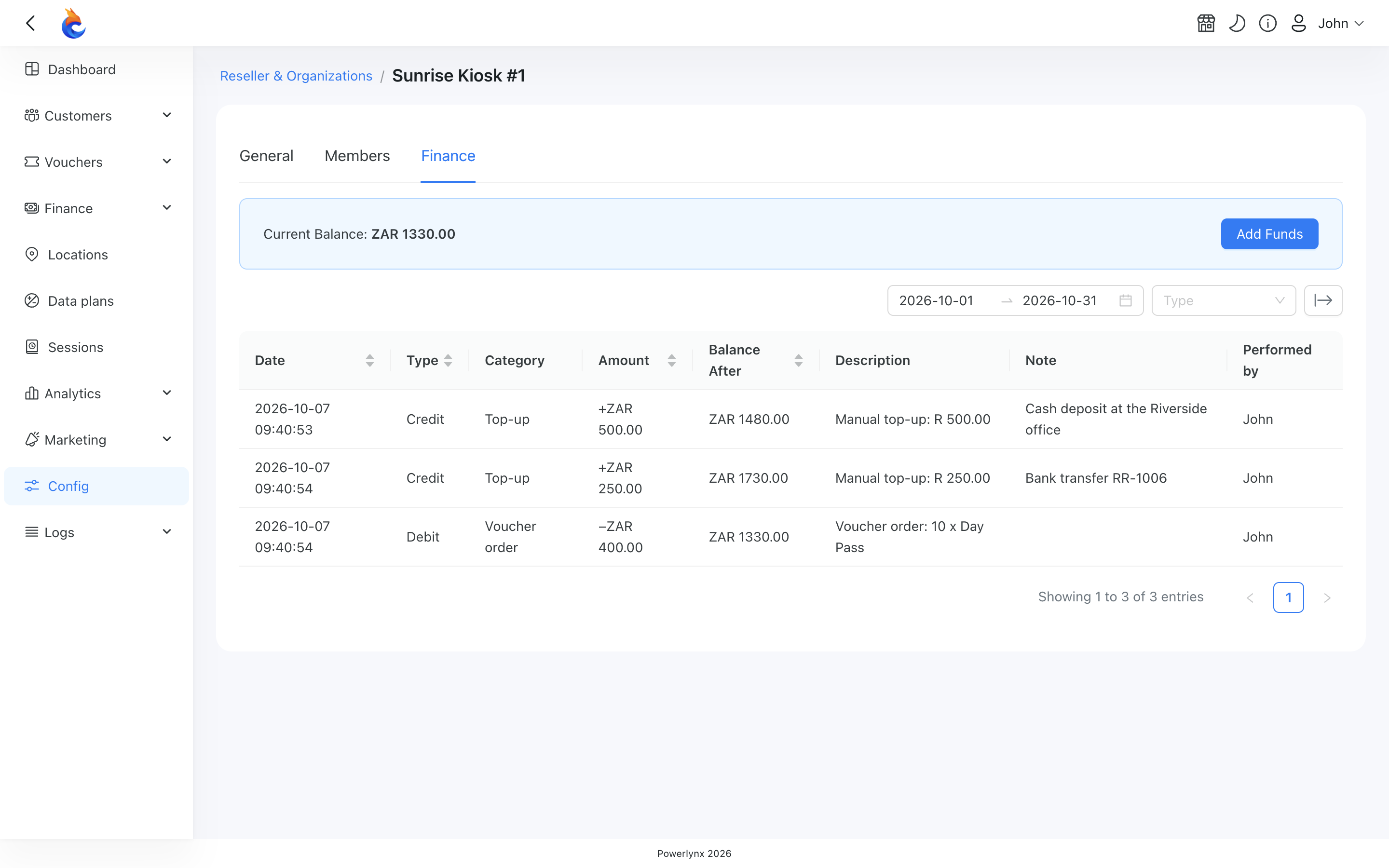
To add funds — for example, after a reseller hands you cash — click Add Funds, enter the amount, and optionally add a note (such as a bank-transfer reference). The new balance is shown for confirmation before it is applied.
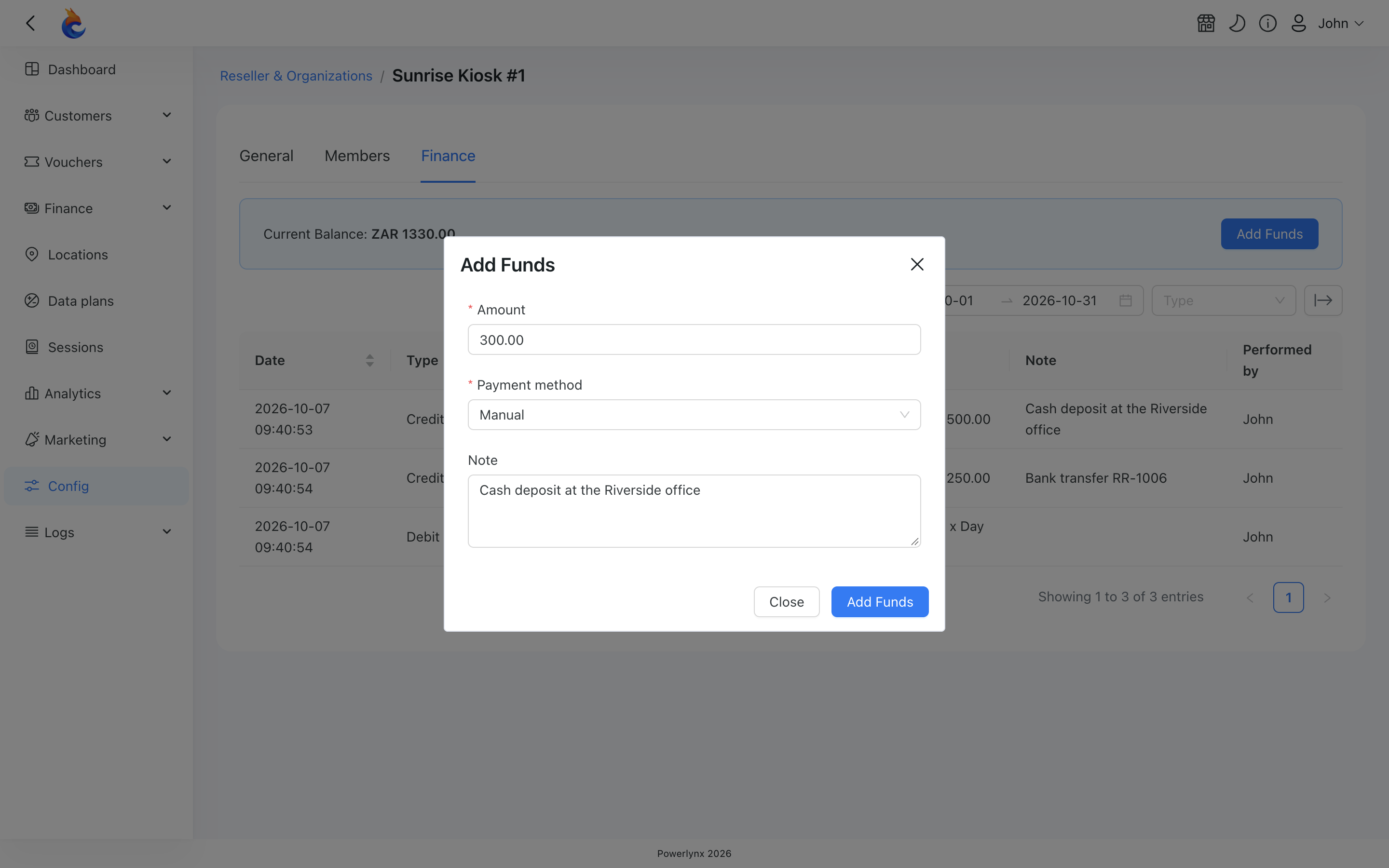
Every credit and debit is recorded in the ledger with the date, amount, the resulting balance, and who performed it, so the financial history is always traceable.
Topping up by payment gateway
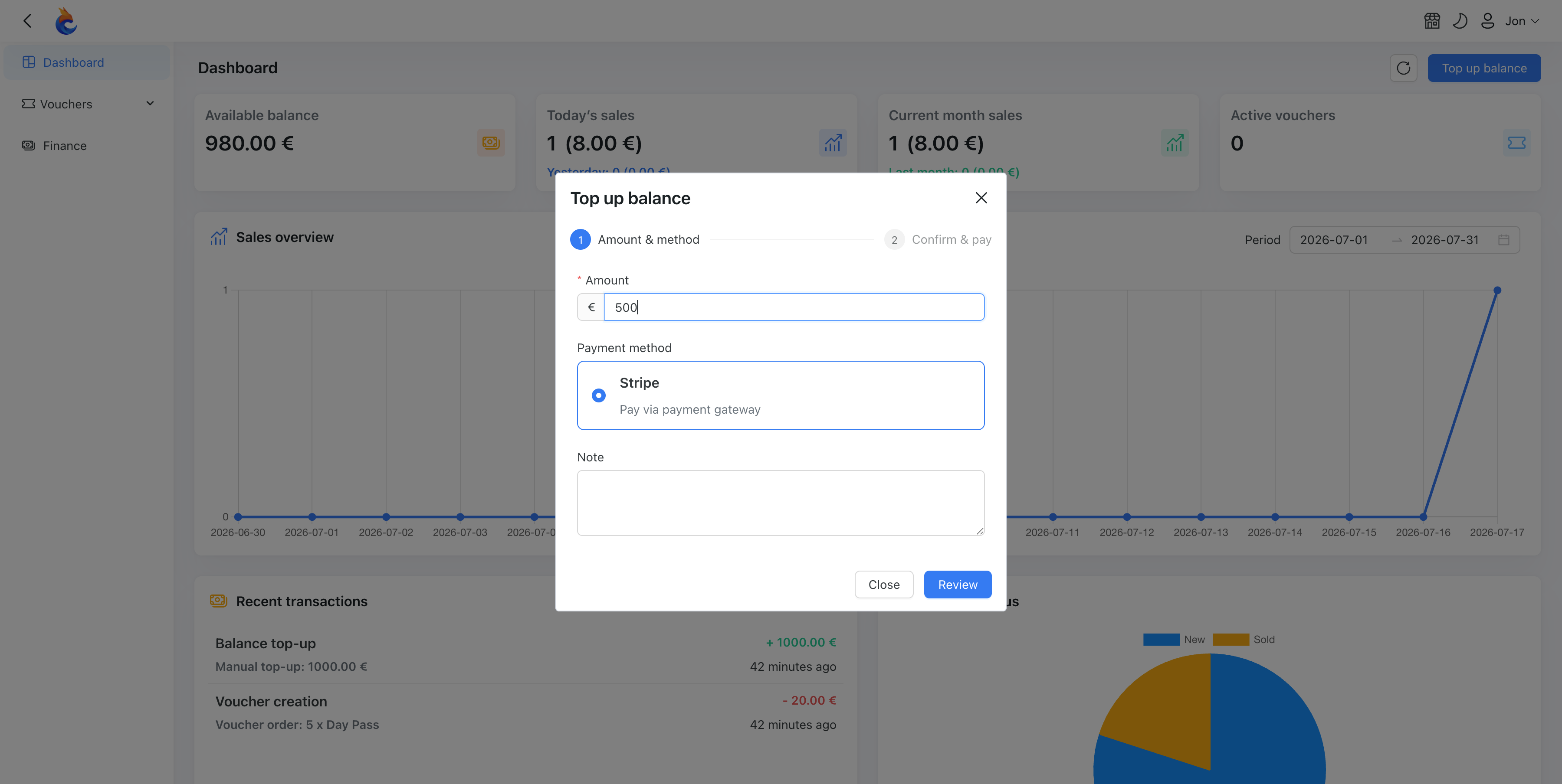
As well as you adding funds manually, a reseller can top up their own balance from the portal using a payment gateway — handy when they'd rather pay you online than in cash. On their Dashboard they click Top up balance, enter the amount, pick a payment method (one of the top-up methods you enabled for the organization), and confirm. They're taken to the gateway's secure payment page, and once the payment settles the balance updates automatically.
INFO
If a top-up payment is still settling, the balance updates once it clears. A failed or cancelled top-up leaves the balance unchanged.
Entering the Reseller Portal
When an admin is assigned to one or more reseller organizations, a Reseller Portal button appears in the top-right of the navigation bar. With one organization it opens the portal directly; with several it offers a picker.
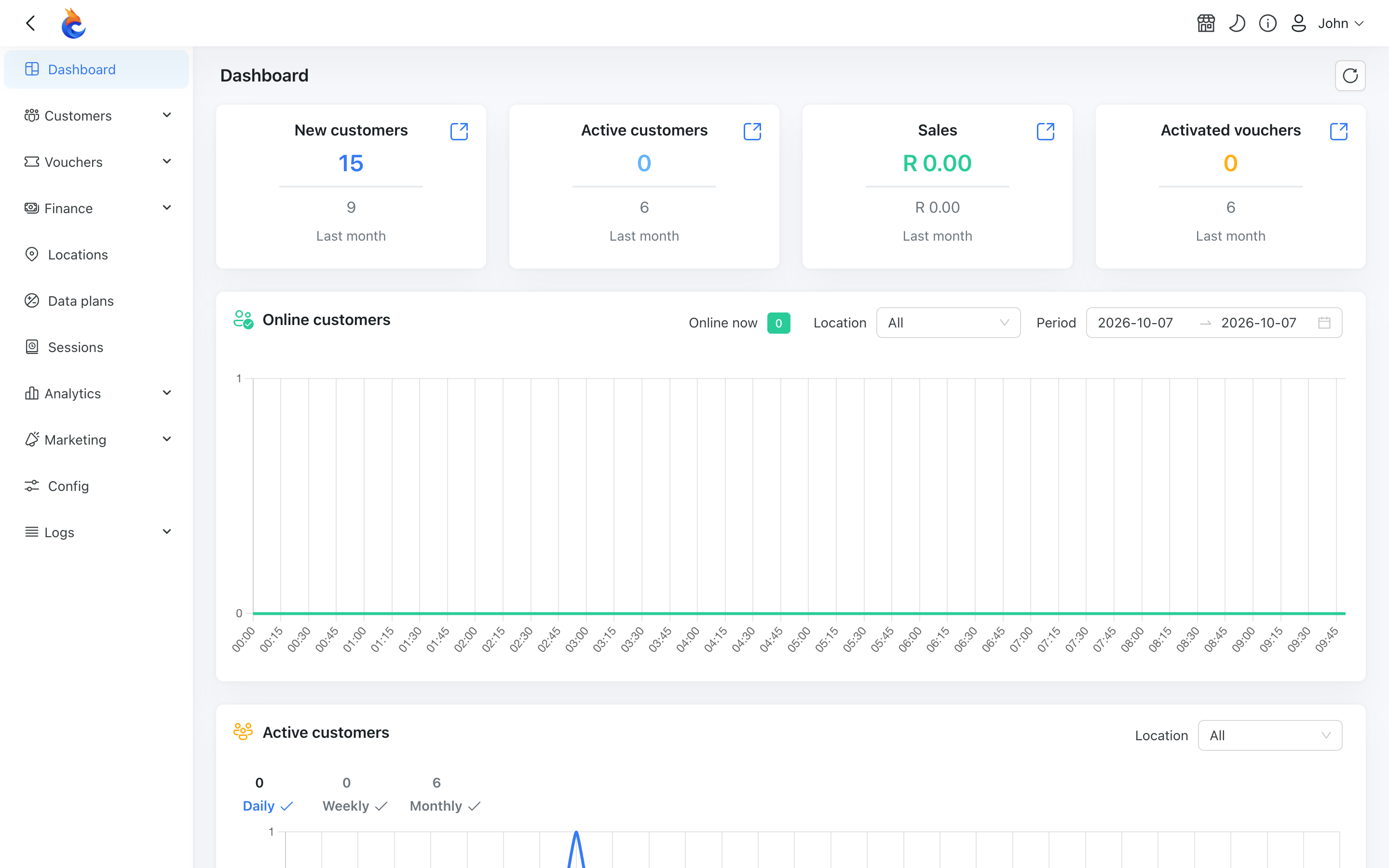
Admins always have a Return to Main Dashboard button so they can switch back. Accounts created purely as resellers go straight to the portal and do not see the main Powerlynx dashboard at all.
The reseller dashboard
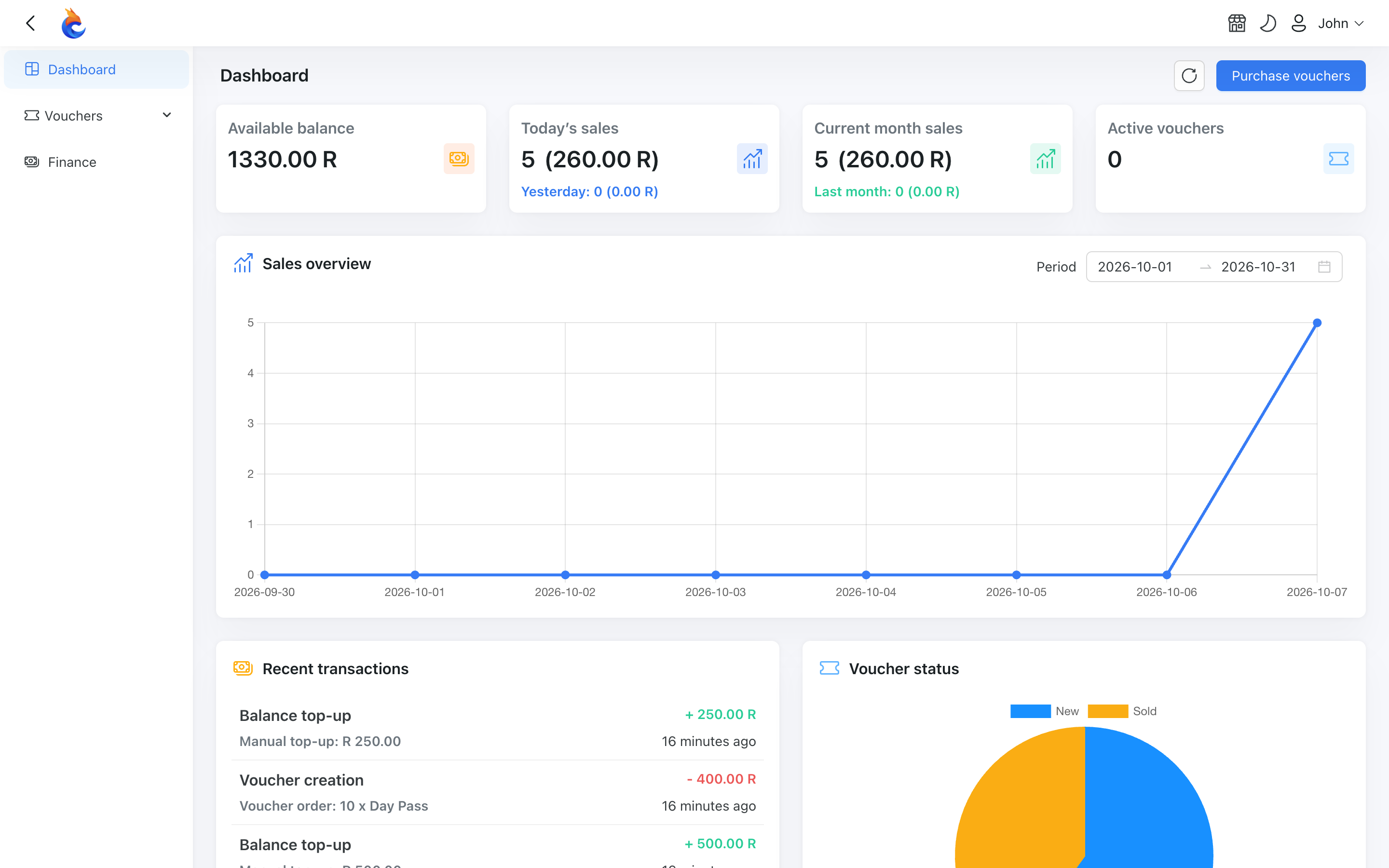
The dashboard is the reseller's landing page. It shows, for their organization:
- Available balance — current prepaid balance.
- Today's sales and Current month sales — how many vouchers were sold and their value, with a comparison to the previous period.
- Active vouchers — vouchers with a customer session currently in progress.
- A sales overview chart for the chosen period, a voucher status breakdown, and the most recent balance transactions.
The dashboard also carries the Purchase vouchers button, so a reseller can order new stock right after logging in. Owners and Managers see it; Viewers don't.
Buying vouchers
Resellers buy vouchers by clicking Purchase vouchers on the dashboard (the same button is also on the Batches list), in a short step-by-step flow:
- Select a plan — only the plans you made available to the organization are shown, each with its price and limits.
- Set the quantity and expiration — choose how many vouchers to generate. The expiration is pre-filled from the selected plan and can be adjusted if needed.
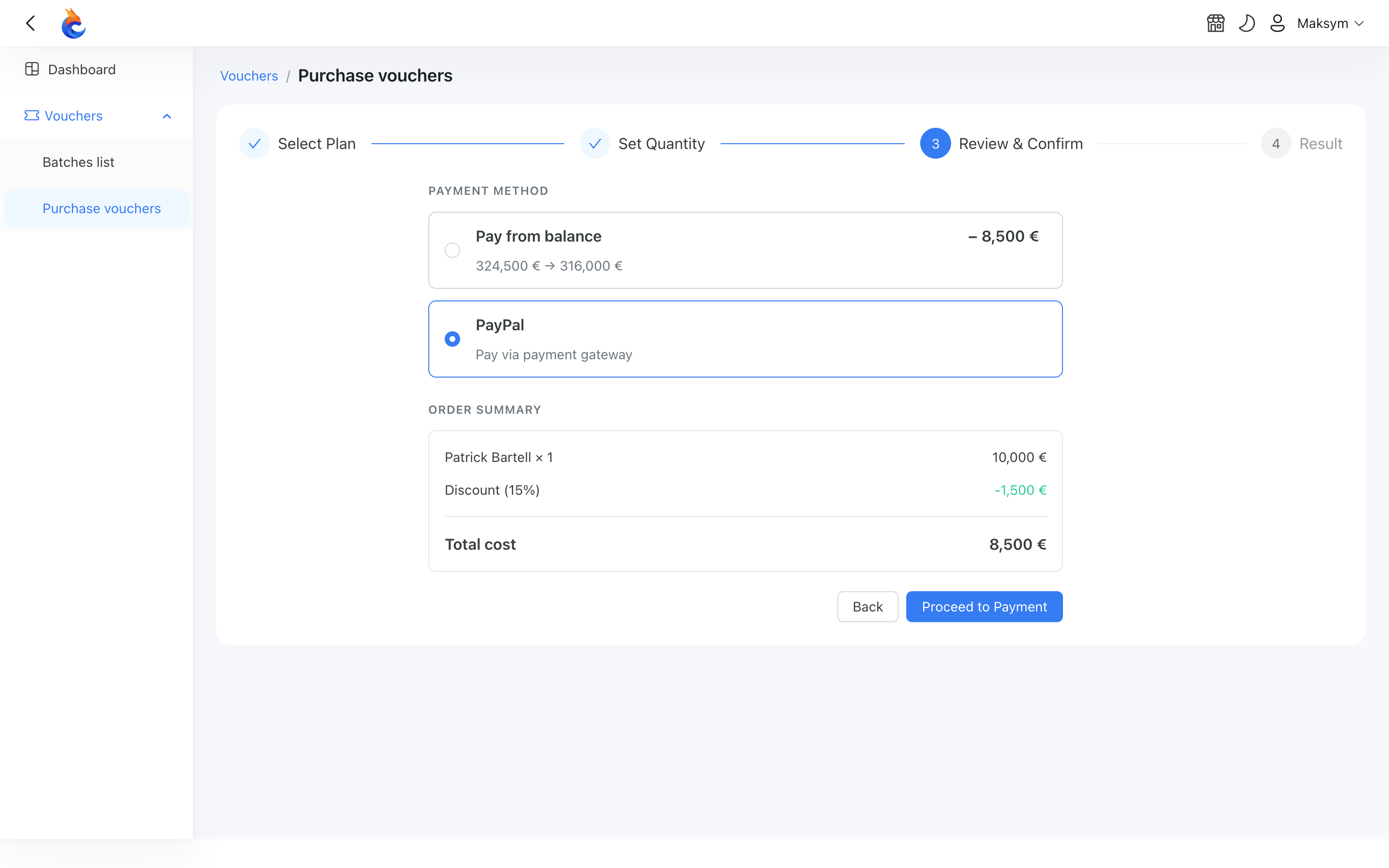
- Review & confirm — check the order summary (quantity, retail price, discount, and total cost) and choose how to pay.
TIP
Expiration is taken from the data plan automatically, and you cannot pick a date in the past, so a batch can never be created already expired.
Choosing how to pay
On the review step the reseller picks a payment method:
- Pay from balance — the total is taken from the organization's prepaid balance.
- Pay via payment gateway — the reseller pays you directly through a payment gateway. This option appears only when you have enabled a top-up method for that organization.
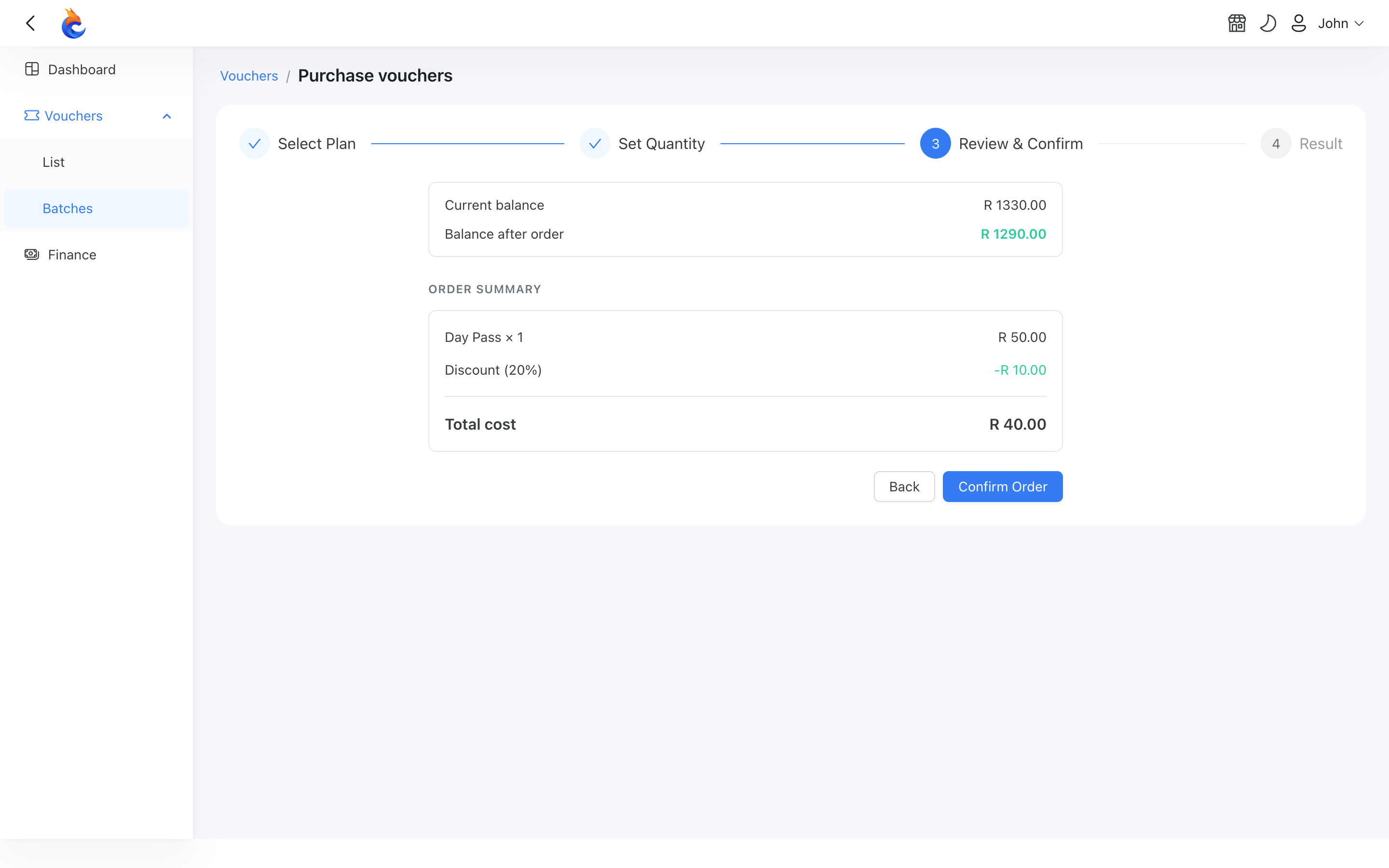
When paying by gateway, the reseller sees a checkout summary and is taken to the gateway's secure payment page.
Result
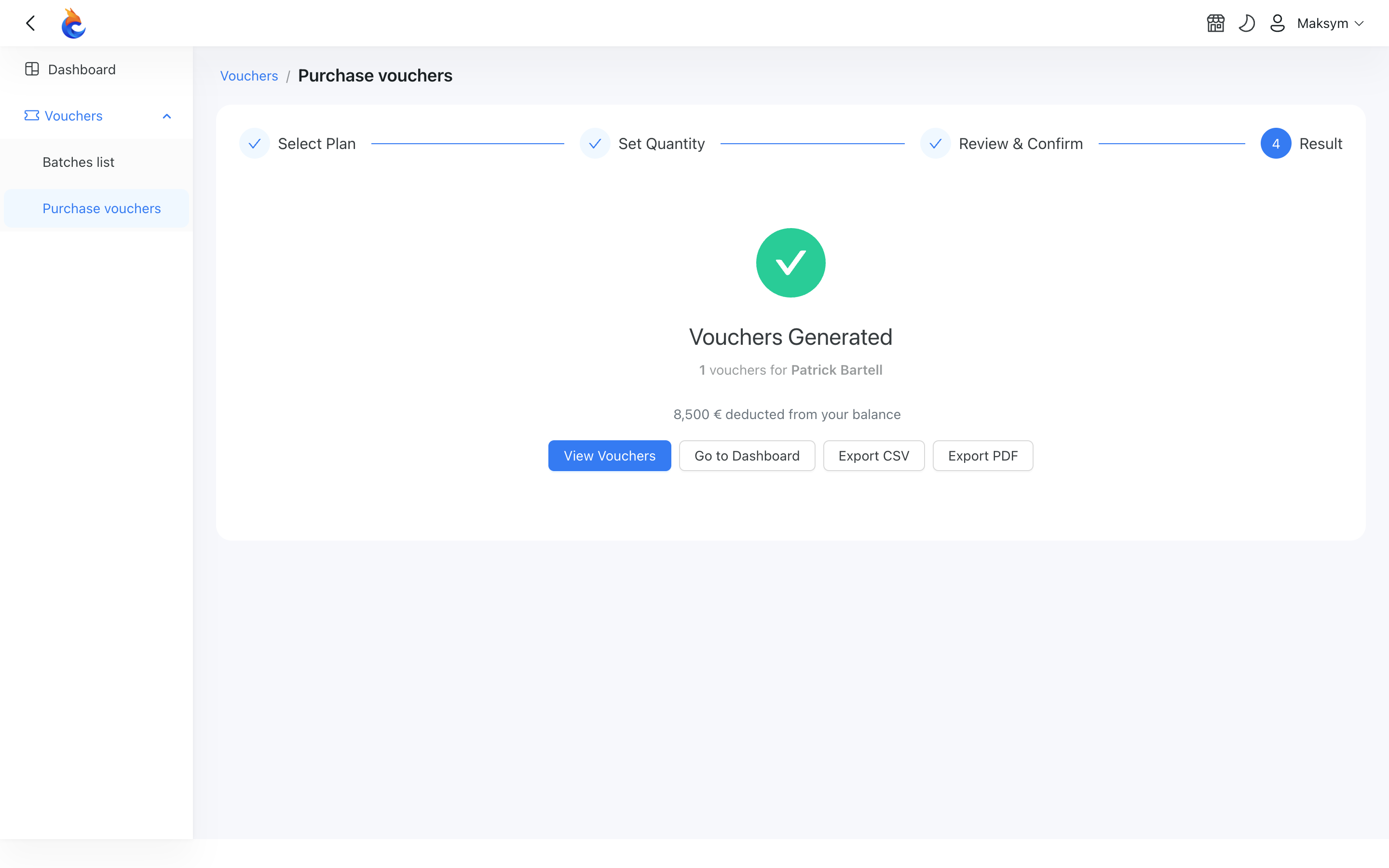
Once payment succeeds (or the balance is debited), the batch is generated immediately and a result page confirms how many vouchers were created and the amount charged, with options to export the batch or view the vouchers. View vouchers opens the batch that was just bought, so the reseller can start selling from it straight away.
INFO
The same result page is shown whichever way the reseller paid — the only difference is whether the amount came from their balance or was charged through the gateway. If a gateway payment fails or is cancelled, no vouchers are generated and the balance is untouched.
Managing voucher stock
The reseller's Vouchers menu has two views of the same stock: Batches, for working with one order at a time, and List, for finding a single voucher across all of them.
The Batches list shows every batch the organization has ordered, with its plan, location, date, quantity, and the total it cost.
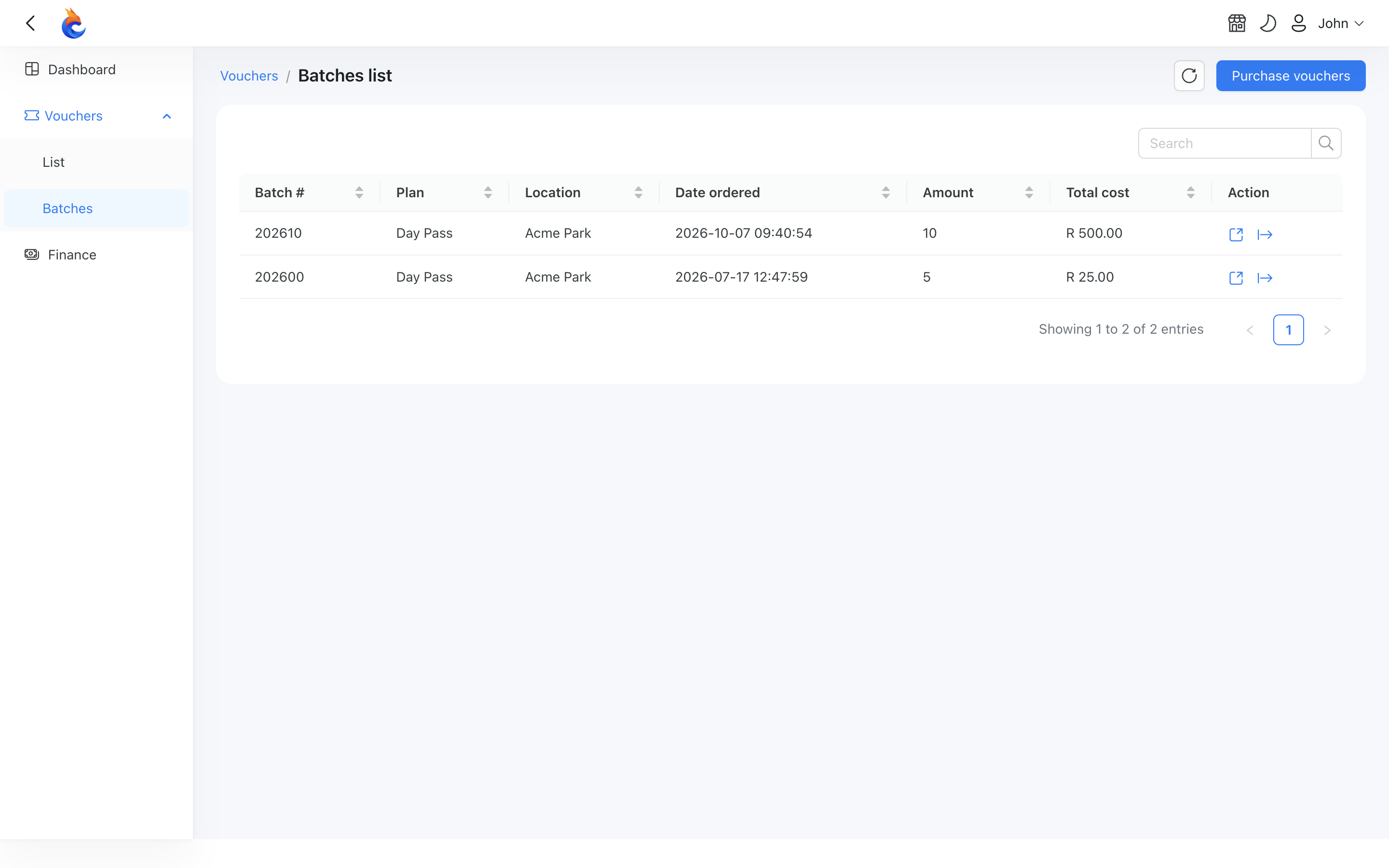
Opening a batch lists its individual vouchers. From here the reseller can, per voucher or in bulk:
- Assign a customer to a voucher — search your customer list and link the customer to it.
- Mark as sold once it has been handed over.
- Cancel a voucher that should no longer be usable.
- Send via SMS — deliver the voucher code by SMS through the organization's SMS gateway.
Finding a voucher across all batches
When a customer comes back with a question about one voucher, the reseller doesn't need to remember which batch it came from. Vouchers → List shows every voucher of the organization in one table, newest first, with the batch, voucher status, plan, location and activation date next to the usual columns.
Use the filters to narrow it down — by voucher ID, batch, prefix, MAC address, voucher status, reseller status, plan, location, or activation date.
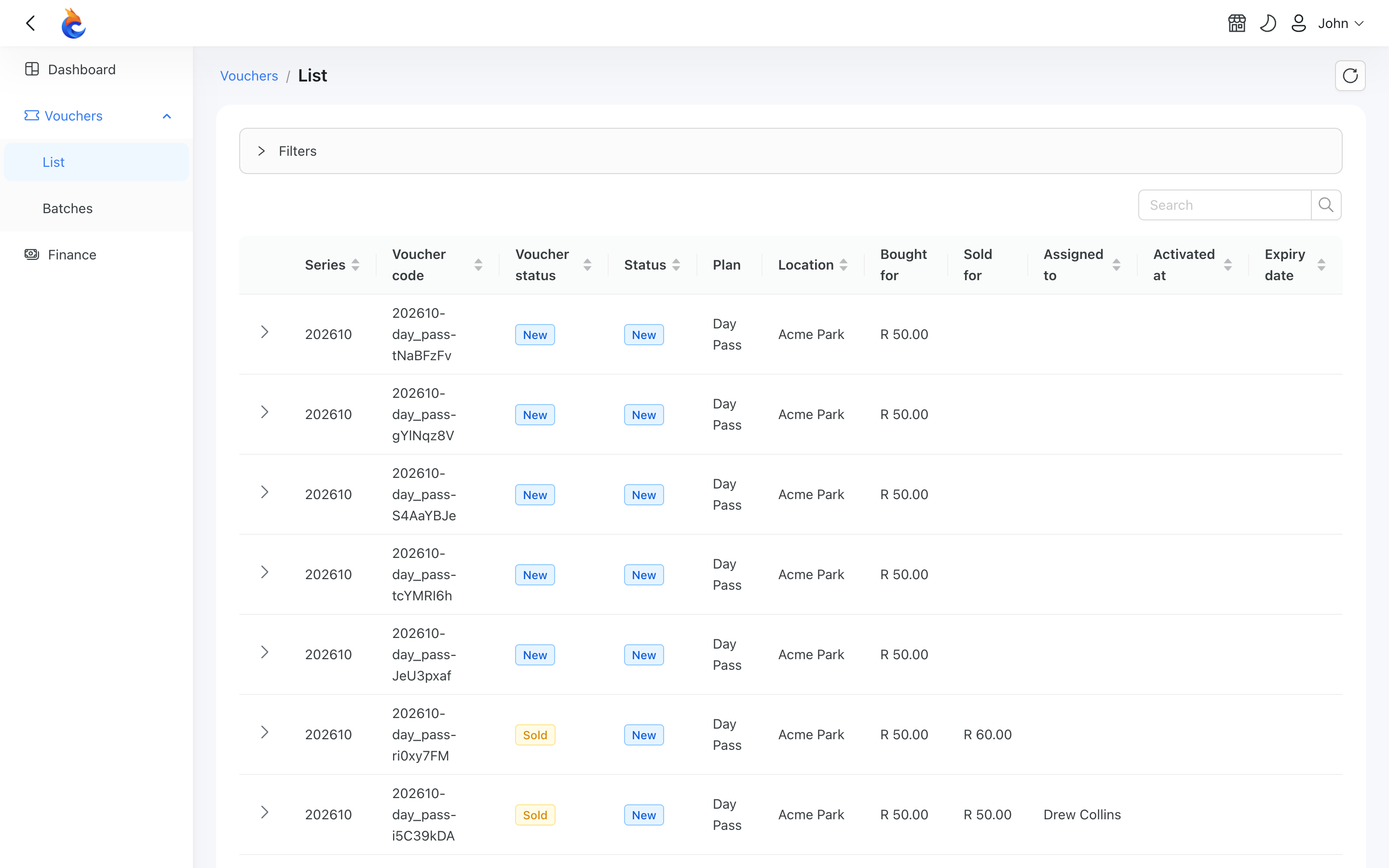
Each row has the same actions as on the batch page — mark as sold, edit the sold-for price, cancel, assign a customer, and send via SMS.
Vouchers can't be deleted from the Reseller Portal. To take a voucher out of circulation, use Cancel — it is disabled and can no longer be used to connect.
INFO
Bulk actions are only available inside a batch. The List view has no selection checkboxes, because bulk Mark as Sold pre-fills one price for every selected voucher, and that only makes sense when all of them come from the same batch.
Sending a voucher by SMS
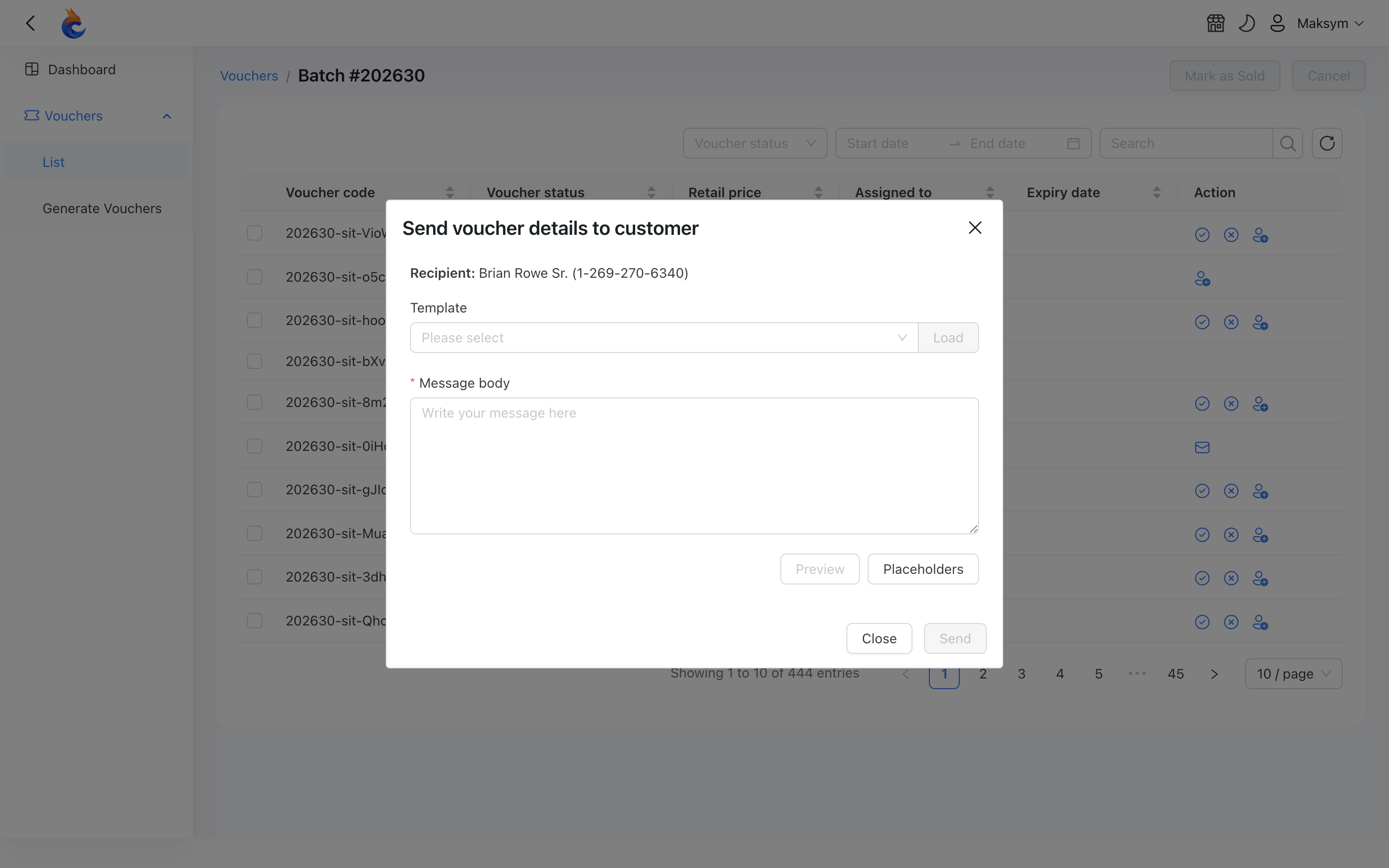
Send via SMS opens a short form where the reseller picks a message template, adjusts the text if needed, previews it, and sends it through the organization's SMS gateway.
- Voucher with an assigned customer — the message goes to the phone number on that customer's record, shown at the top of the form so the reseller can confirm who it's going to.
- Voucher without a customer — the form shows a Phone number field instead, so the reseller can type the buyer's number (with the country code). This is handy for walk-in buyers: there's no need to create a customer record just to send them an access code.
TIP
If a voucher has a customer, the message always goes to that customer's number — you can't redirect it to someone else. The default templates greet the customer by name; when you send to a typed number for a voucher without a name, consider a template without a personal greeting.
Sending is not available for vouchers that are Expired or Cancelled, or when the organization has no SMS gateway assigned.
INFO
Each voucher carries two independent states: the reseller's own distribution status (New, Sold, Redeemed, Used, Expired, Cancelled) and the system status that tracks the actual network session. This lets a reseller mark a voucher as sold the moment they hand it over, even before the customer connects.
Recording the resale price (markup)
To help resellers track their markup, each voucher in a batch shows two money columns side by side:
- Bought for — the plan's retail price for the voucher. If the organization buys vouchers at a discount, what it actually paid is shown under Finance, as the Voucher creation entry for that order.
- Sold for — the price the reseller resold it for. Blank until the voucher is marked sold.
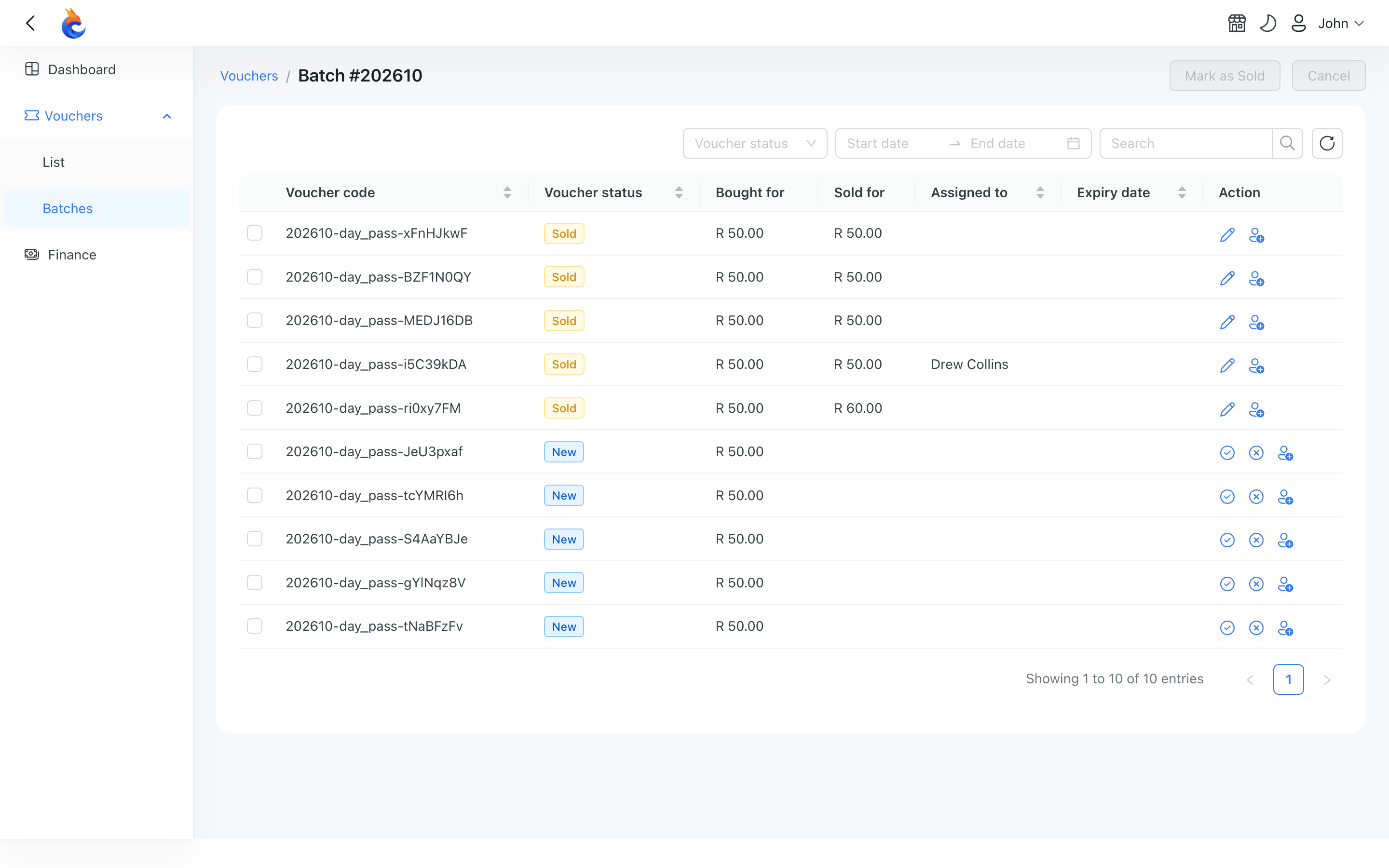
When the reseller uses Mark as Sold, a short modal asks for the Sold for price, pre-filled with the voucher's retail price. They keep it or type the actual amount, then confirm. Selecting several vouchers and using the header Mark as Sold applies one Sold for (per voucher) price to all of them — handy for "I sold 10 at R20 each".
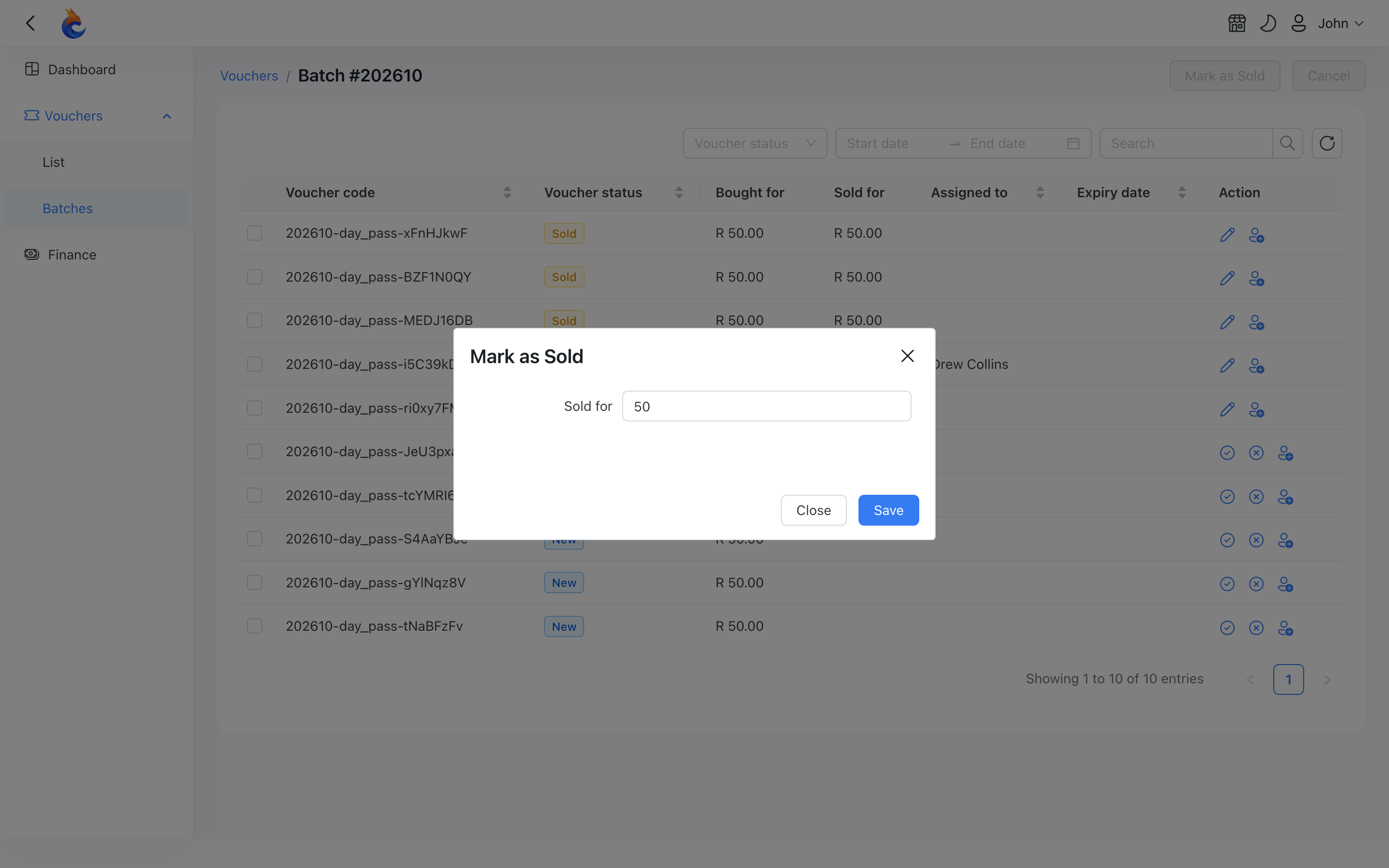
If a reseller needs to correct a price — or fill in one they forgot — the Edit Sold for action on an already-sold voucher reopens the same modal.
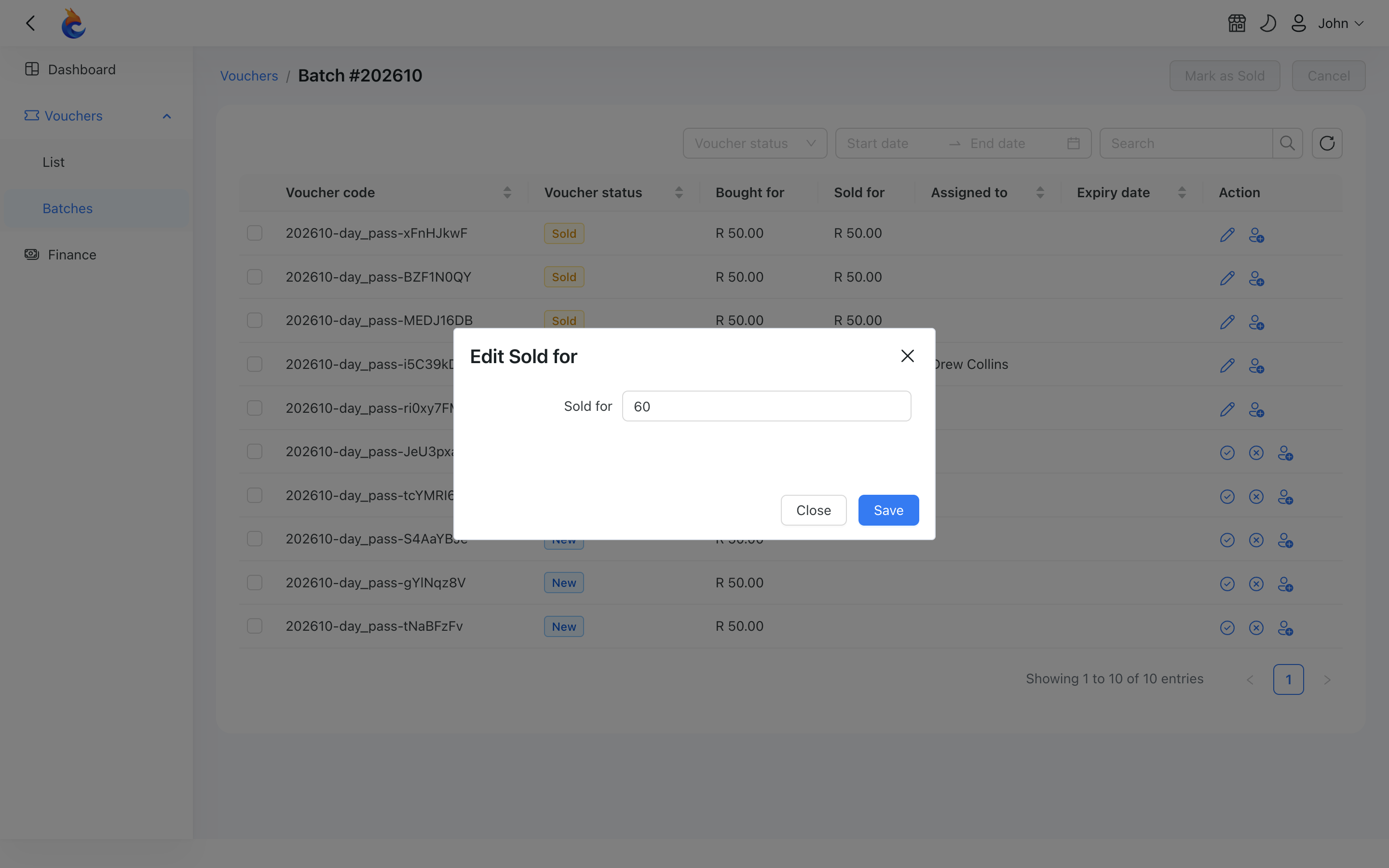
The resale price feeds straight into the reseller dashboard: the Today's sales and Current month sales totals sum what vouchers actually sold for (falling back to the retail price when no resale price was recorded), so the figures reflect real revenue rather than list price.
Exporting a batch
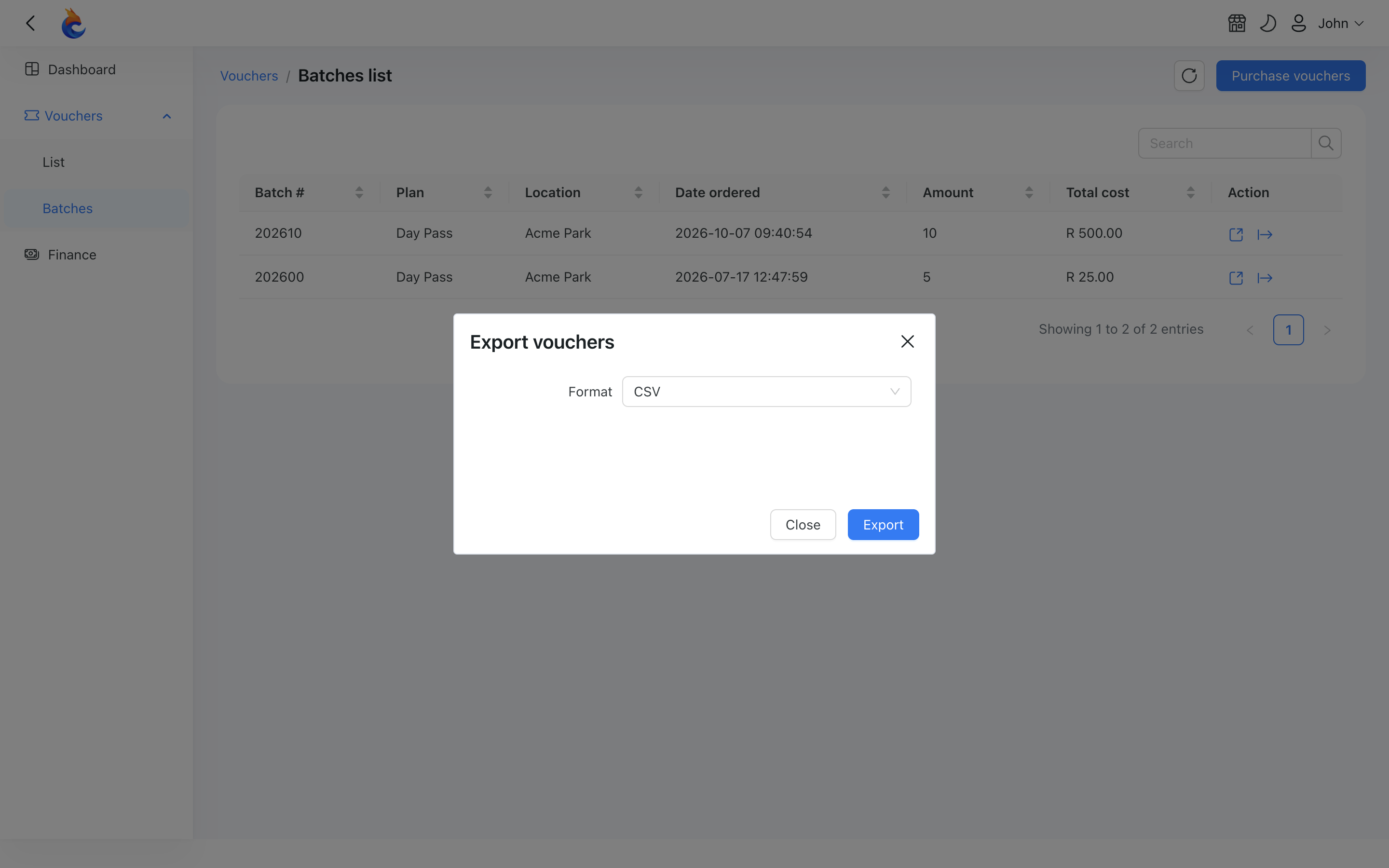
A whole batch can be exported as a CSV file or a printable PDF, both from the Batches list and straight from the result page after a purchase. The PDF uses the organization's voucher template, ready for printing.
Reseller vouchers in your admin panel
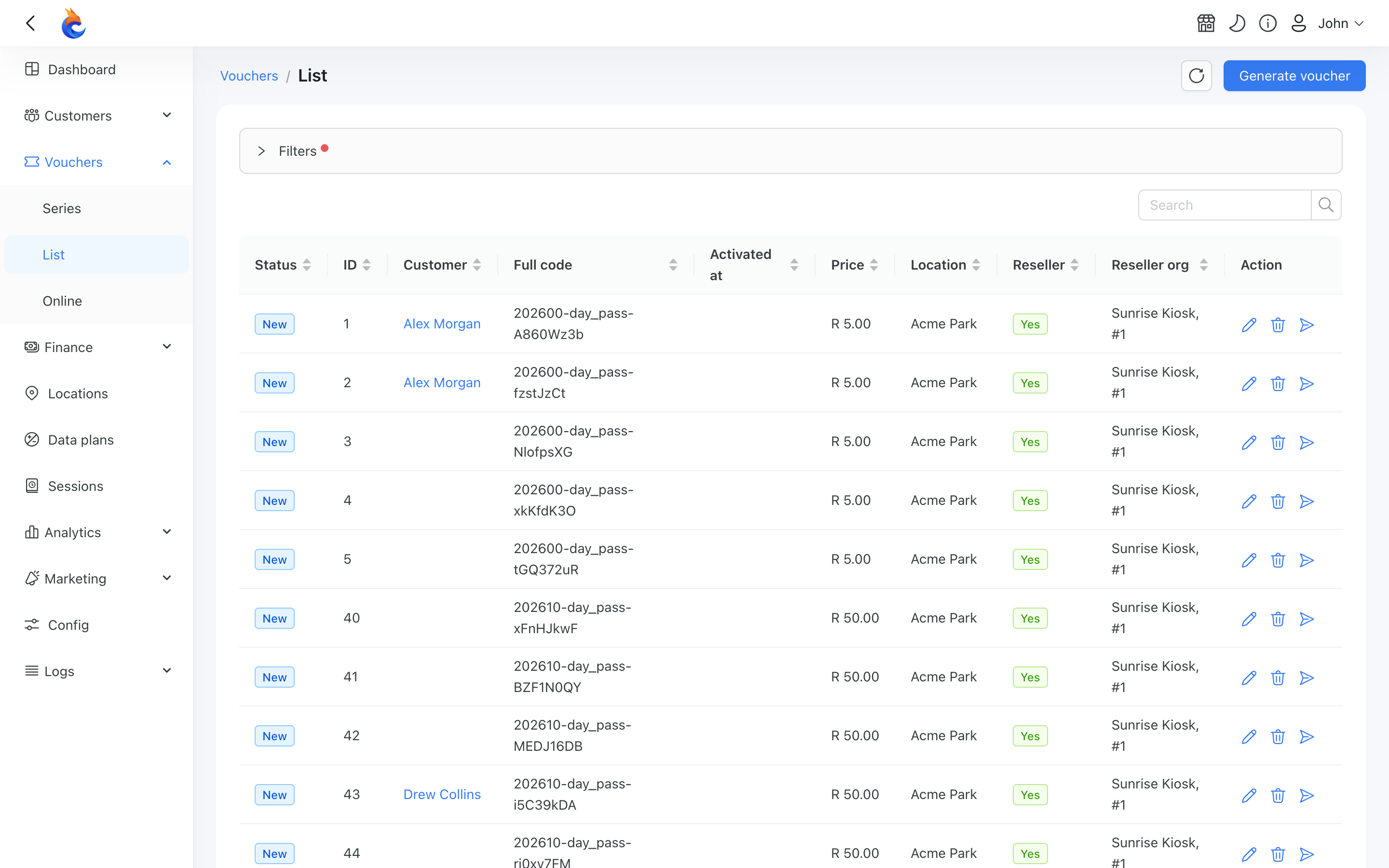
Vouchers generated through the Reseller Portal live alongside your own in the main admin panel, and they are clearly marked so you don't change a reseller's stock by mistake.
In Vouchers → List there are Reseller and Reseller org columns and a filter, so you can see at a glance which vouchers belong to a reseller and narrow the list to a single organization.
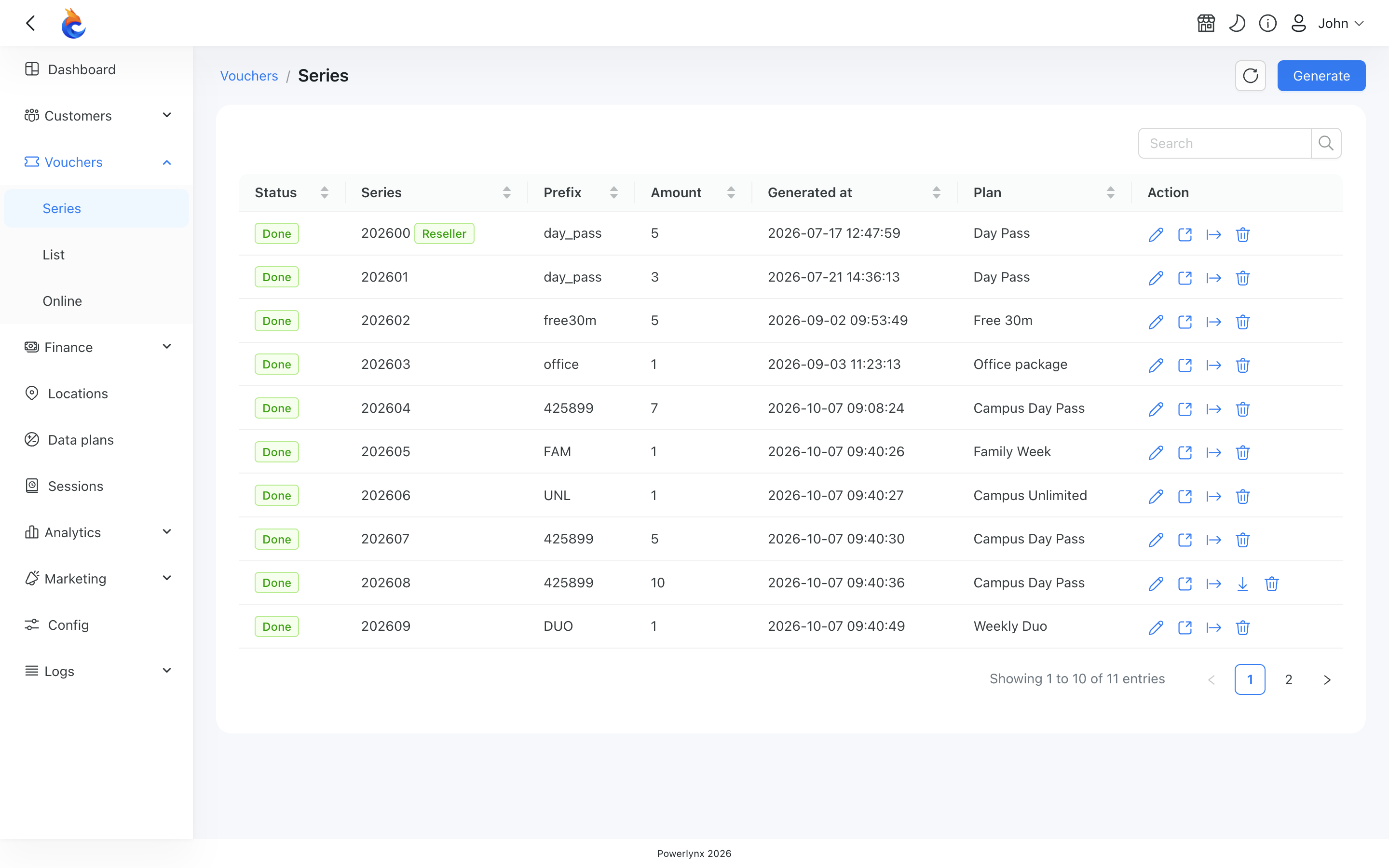
In Vouchers → Series, batches created by a reseller carry a Reseller badge, with the organization's name shown on hover.
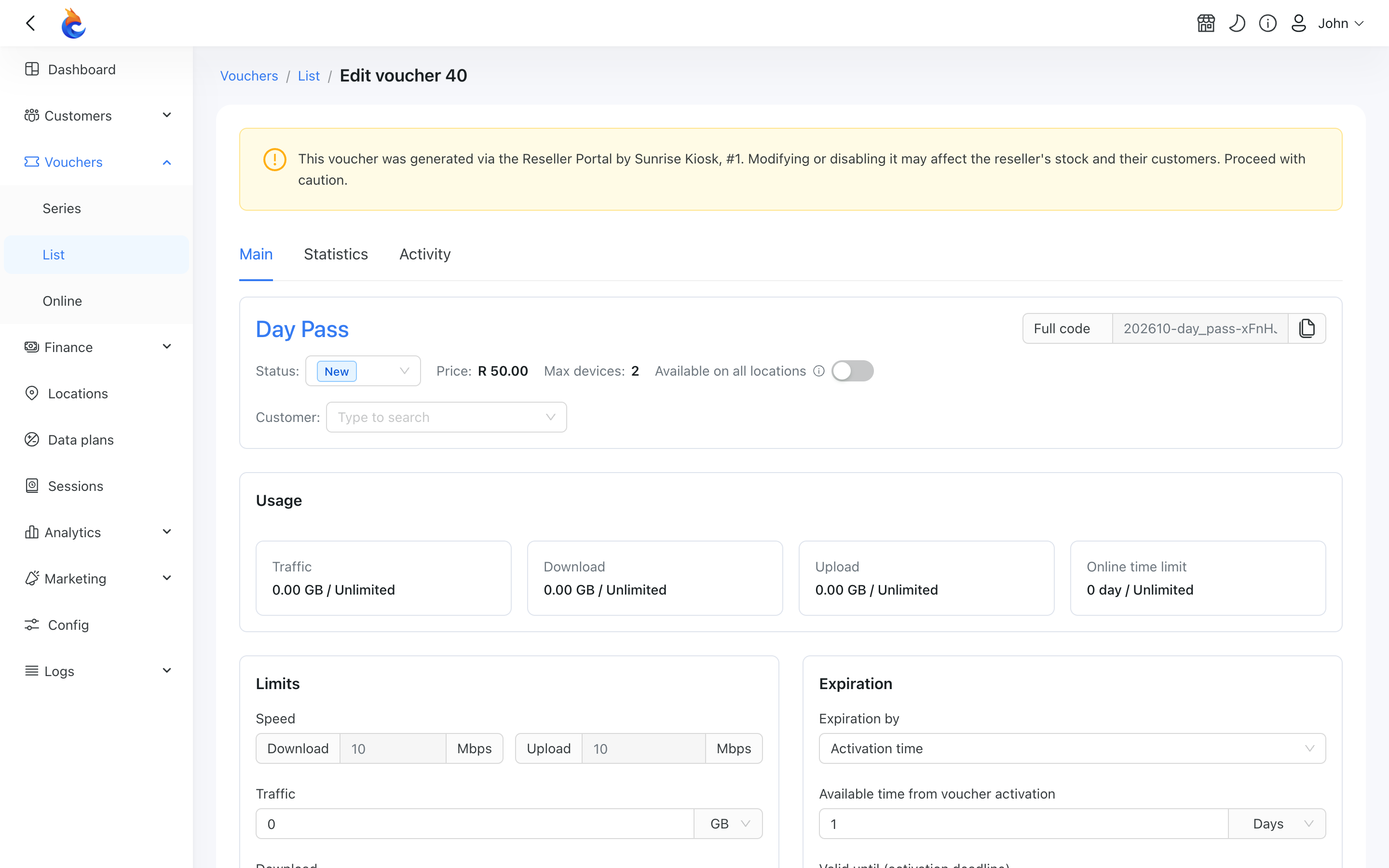
And when you open a reseller-owned voucher for editing, a clear warning reminds you that it belongs to a reseller and that changing it may affect their stock and their customers.
WARNING
This is a reminder, not a lock — you can still edit the voucher. Treat it as a prompt to check with the reseller before changing or disabling stock they may have already sold.
Reseller analytics
To see how your reseller network performs, open Config → Finance → Reseller & Organizations and switch to the Analytics tab, next to the organizations list. Only super-admins see this tab.
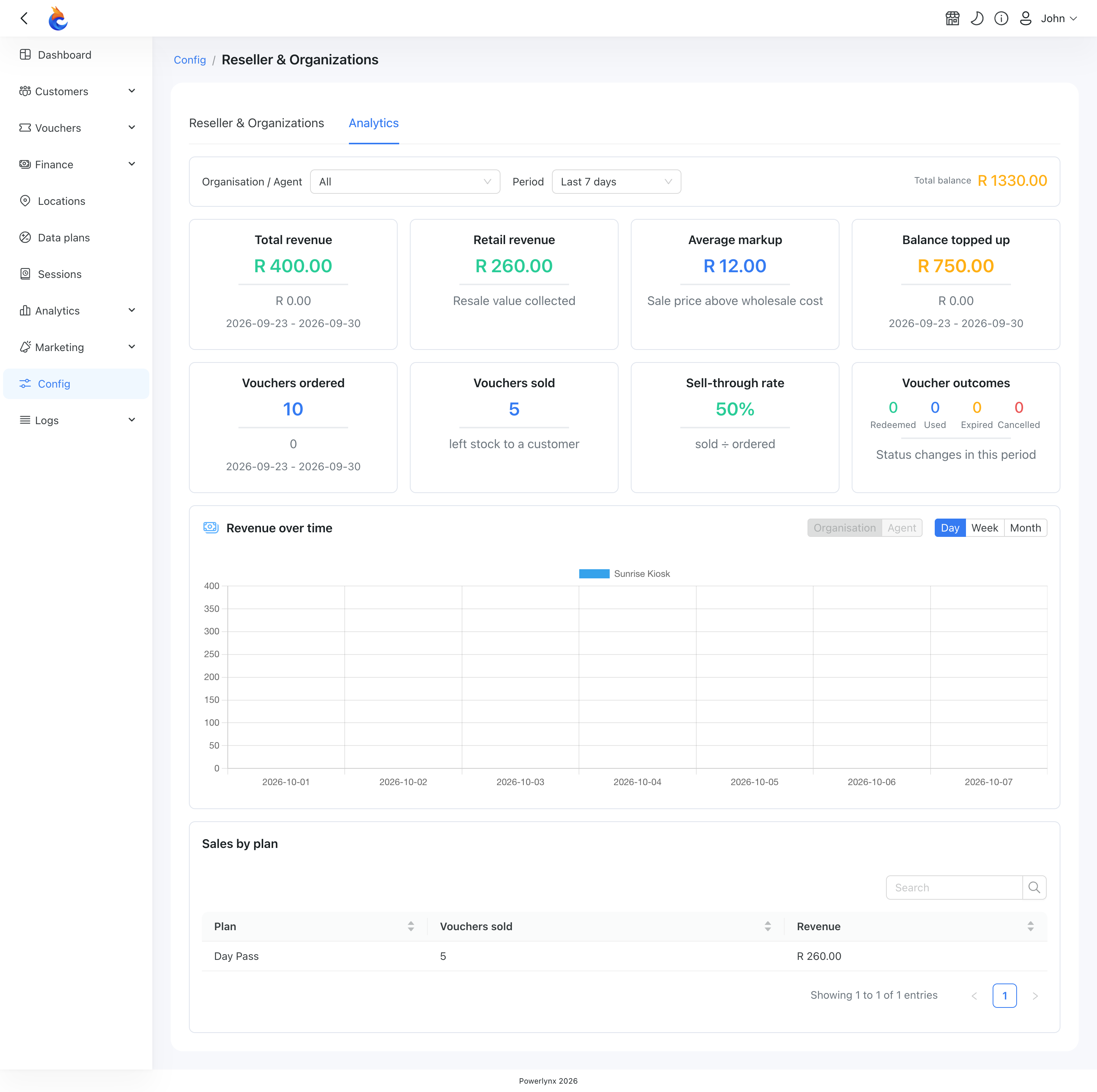
Filters
Three filters at the top control everything on the tab:
- Organization — one reseller organization, or All to add up every organization.
- Agent — one person in the selected organization, or All. The list includes the organization's current members and anyone who ordered or sold its vouchers, even if they have since been removed. When you pick an agent, the date of their last order and last sale is shown under the filter — always their most recent activity, whatever period you selected.
- Date range — Today, Last 7 days, Last month, Last 3 months, or a custom range. It opens on the last 7 days.
Who counts as the agent
An organization's members often split the work: one person orders stock from you, another sells it over the counter, and someone else tops up the balance. So when you select an agent, each figure looks at the role that matters for it:
- Ordered by the agent — Total revenue, Vouchers ordered, Sell-through rate, and the revenue chart.
- Sold by the agent — Vouchers sold, Retail revenue, Average markup, Voucher outcomes, and the Sales by plan table.
- Topped up by the agent — Balance topped up.
An agent who only orders shows ordered vouchers but no sales, and one who only sells shows the reverse — both are correct.
What the cards show
- Total revenue — what the organization paid you for voucher orders in the period (the wholesale cost), compared with the previous period of the same length.
- Vouchers ordered — how many vouchers were ordered in the period, with the same comparison.
- Sell-through rate — vouchers sold in the period from the batches that were ordered, as a percentage of the vouchers ordered in the period.
- Vouchers sold — how many vouchers were sold in the period, whichever batch they came from.
- Retail revenue — what the vouchers sold in the period were resold for. Where no resale price was recorded, the voucher's retail price is used.
- Average markup — the average gap between the resale price and what the organization paid you for each voucher it sold. It shows "—" when there is no sale to average.
- Voucher outcomes — how many vouchers became redeemed, used, expired or cancelled during the period (not how many were sold in it).
- Balance topped up — the balance top-ups made in the period, manual and by payment gateway, with the previous period for comparison.
- Total balance — the current balance of the selected organization(s), right now. It ignores the period and agent filters.
Below the cards, Sales by plan breaks the agent's sales down by data plan. It is hidden when nothing was sold in the period.
INFO
- A voucher a customer starts using before the reseller marks it as sold still counts as sold, but it isn't credited to any agent — it only appears with All agents selected.
- Cancelled vouchers never have a seller (only unsold stock can be cancelled), so the cancelled outcome is only meaningful with All agents selected.
- Sales from older batches whose purchase cost per voucher wasn't recorded are left out of Average markup, so it can show "—" even when vouchers were sold.
Revenue over time
The chart shows revenue across the selected period. Switch between Day, Week and Month bars, and choose how to split the bars:
- Organisation — one series per organization (or a single series when one organization is selected).
- Agent — one series per person who ordered vouchers for the selected organization, plus an Unattributed series for orders with no known person. Pick a single organization first; with All organizations selected this option is unavailable.
Related pages
- Vouchers — how vouchers and series work in Powerlynx.
- Data plans — the plans resellers sell.
- SMS — configuring the SMS gateways used to send voucher details.