Integration with HubSpot
Every customer who connects to your Wi-Fi is a potential marketing contact. If you use HubSpot as your CRM, this integration lets you push your Powerlynx customers into HubSpot as contacts — so you can follow up with offers, newsletters, and campaigns using the data you already collect at the splash page.
The sync is one-way: Powerlynx → HubSpot. Powerlynx stays the source of truth for your customers; HubSpot receives a copy as marketing contacts. You connect your HubSpot account, decide which customer fields map to which HubSpot properties, and push your customers whenever you want with a single button.
INFO
This is the first phase of the HubSpot integration. Customers are pushed on demand when you click "Sync now" — there is no automatic background sync on every customer change yet. The Synchronization tab always shows you who is out of date so you know when it's worth running a sync.
The integration lives under Config → Integrations → HubSpot and is organised into three tabs: Connection, Field mapping, and Synchronization.
Connecting HubSpot
To let Powerlynx talk to your HubSpot account you need a Service Key (a private access token) from HubSpot.
In your HubSpot account, create a Service Key under Development → Keys → Service keys → Create, and give it these scopes:
crm.objects.contacts.readcrm.objects.contacts.writecrm.schemas.contacts.readcrm.schemas.contacts.write(optional)
The key looks like pat-…. Copy it.
Back in Powerlynx, open the Connection tab, paste the key into the Access token field, and click Save:
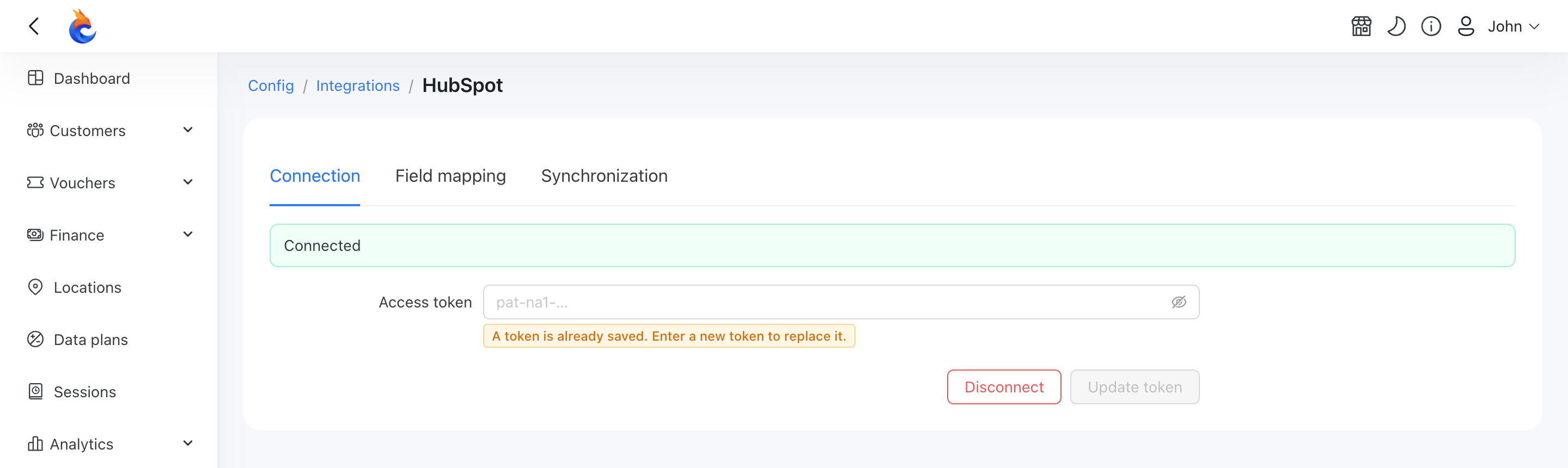
Powerlynx immediately checks the key against HubSpot:
- If the key is valid, the status switches to Connected and the token is stored securely (encrypted).
- If the key is missing a required scope, Powerlynx shows you exactly which scope to add in HubSpot.
- Any other problem shows the message returned by HubSpot, so you know what went wrong.
Use the eye button to reveal the stored key at any time, and Disconnect to remove it.
Mapping fields
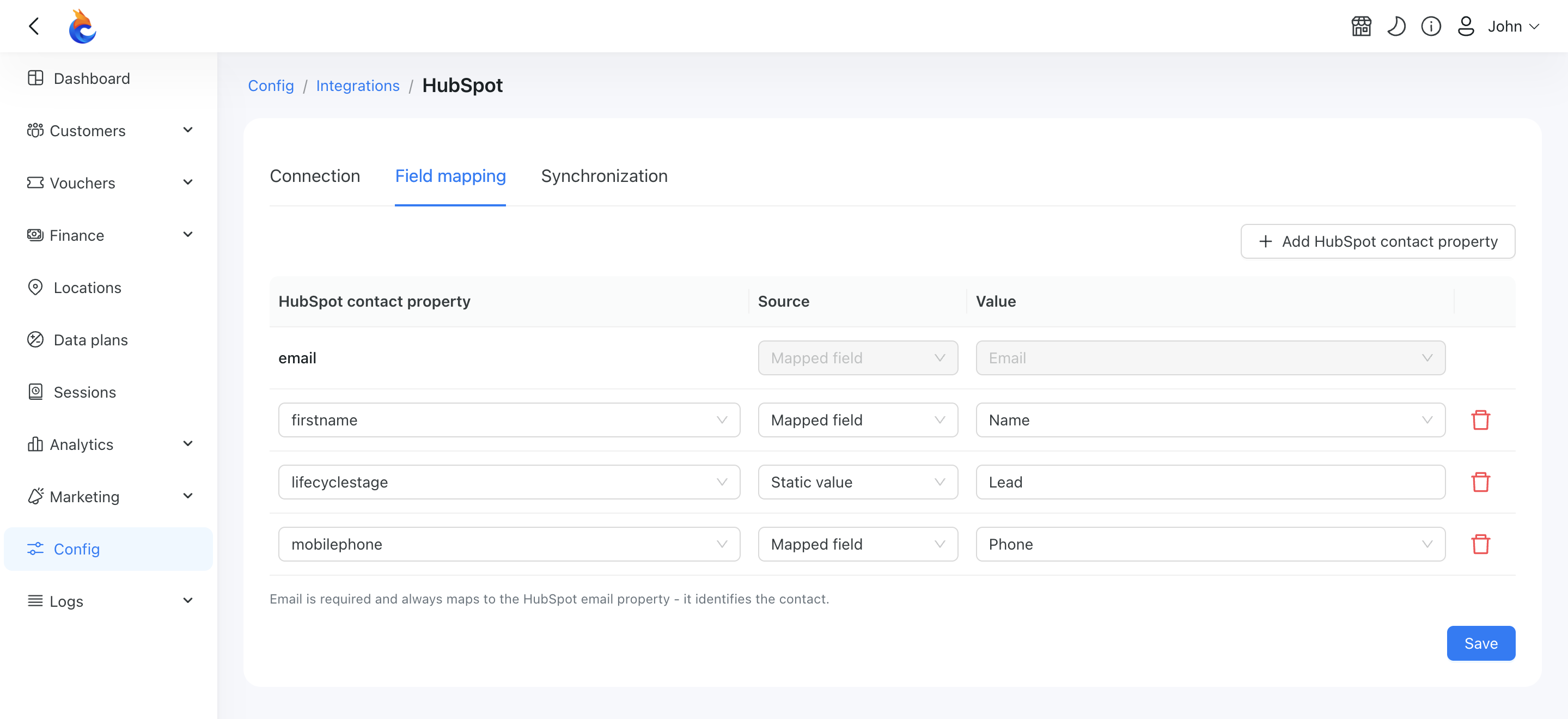
The Field mapping tab is organised around HubSpot properties: you build a list of the HubSpot contact properties you want to fill, one row each. For every property you pick a Source and a Value:
- Mapped field — the property is filled from a Powerlynx customer field. Choose the field from the value dropdown — any built-in field plus the additional fields you've created.
- Static value — the property always receives the same fixed value you type, the same for every customer (for example, always sending
Leadto a lifecycle-stage property, or a constant campaign source).
Static values let you populate HubSpot properties that have no Powerlynx equivalent at all. The HubSpot properties themselves are loaded live from your account. Use Add HubSpot contact property to add a row and the delete button to remove one; you can't target the same property twice.
WARNING
The Email row is always present and locked — it maps the Powerlynx email to the HubSpot email property and can't be changed or removed. HubSpot uses email to recognise contacts, so it's the key that lets Powerlynx match an existing contact instead of creating a duplicate.
Synchronizing & monitoring
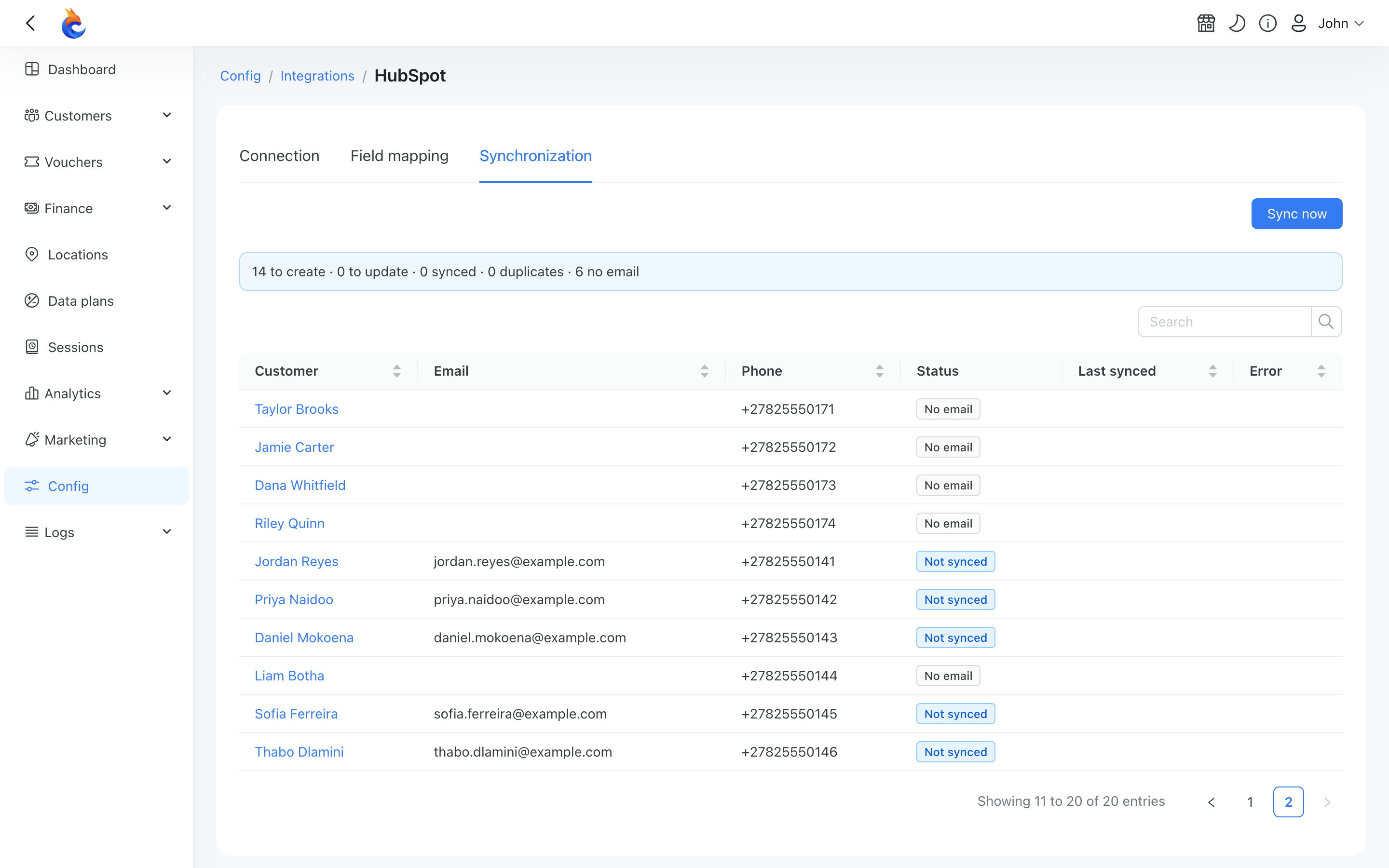
The Synchronization tab is where you push customers and keep an eye on the result. At the top, a summary tells you how many customers will be created, how many will be updated, how many are already synced, and how many can't be synced (no email). Below that is a table listing every customer with their individual sync status.
Click Sync now to push your customers to HubSpot. A progress bar shows the run, and the table refreshes when it finishes. Customer names link straight to the customer page.
A single Sync now is all you need — it creates new contacts, updates the ones whose data has changed, and automatically retries any customer that failed last time.
What the statuses mean
- Synced — pushed to HubSpot and up to date.
- Needs update — already in HubSpot, but the customer's data has changed since the last sync. The next run will update the contact.
- Not synced — has an email and is ready to go, but hasn't been pushed yet. The next run will create the contact.
- Outdated — was synced successfully before, but the most recent attempt failed.
- Error — the last attempt failed and the contact was never created. The row carries the message HubSpot itself returned, so you can see what HubSpot objected to.
- Duplicate — another Powerlynx customer already owns this email address in HubSpot. To avoid overwriting the other contact, this customer is not pushed.
- No email — the customer has no email address, so they can't be turned into a HubSpot contact.
TIP
Powerlynx allows two customers to share an email address, but HubSpot identifies a contact by its email. When two of your customers have the same email, only the first one is synced; the second is marked Duplicate and left untouched so it doesn't overwrite the first contact in HubSpot. If you want both in HubSpot, give them distinct email addresses.
When HubSpot rejects a contact
A rejection is always per customer. If HubSpot refuses one of your contacts, that single row is marked Error with HubSpot's own explanation, and every other customer in the same run is still synced — one problem contact never holds up the rest of your list.
The most common rejection is a conflict: HubSpot already has a record using that email address, so it won't let a second one claim it. That usually means one of two things:
- Another HubSpot contact holds the address as a secondary email.
- You recently restored contacts from HubSpot's recycle bin, and HubSpot's email index hasn't caught up yet.
The error message names the HubSpot record that already owns the address, so you can open it in HubSpot and decide what to do — remove the secondary email, merge the records, or leave things as they are.
TIP
Conflicts like this are resolved on the HubSpot side, not in Powerlynx. Once you've sorted it out there, just click Sync now again — failed rows are always retried, so the contact goes through and the Error clears on its own. There is nothing to reset in Powerlynx.